JPEG vs PNG - Which Format Keeps Image Quality?

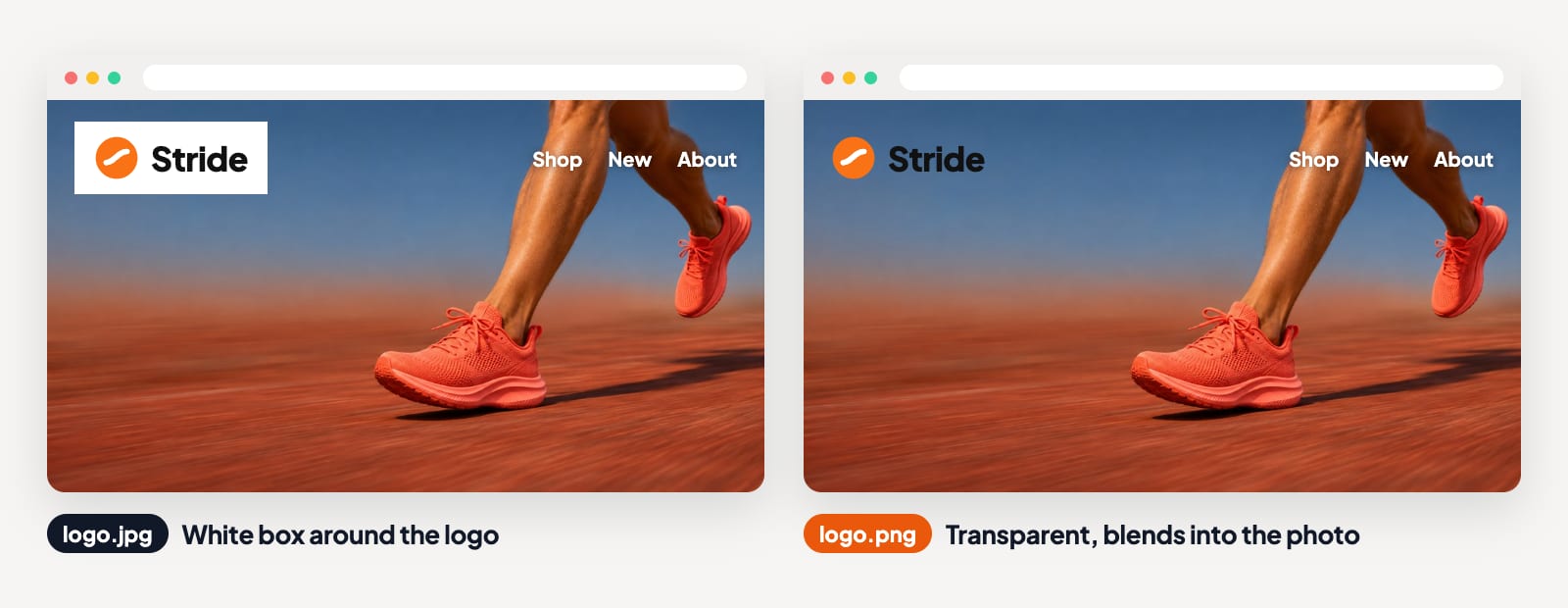
Have you ever uploaded a logo to your website, only to see an ugly white box framing the design? Or sent a photo to a client, only to have their inbox reject the file for being too big? Both problems come from the same small decision, choosing between JPEG and PNG when you hit save.
Here's the short answer to JPEG vs PNG. A JPEG is a compressed file made for photos, and it throws away a little detail to keep the file small. A PNG keeps every pixel exactly as it was and supports see-through backgrounds, which makes it ideal for logos, screenshots and graphics. This guide explains how each format works, when to use which, and how to keep your images sharp.
What Is the Difference Between JPG and PNG?
The biggest difference between JPG and PNG is how each format shrinks the file. JPEG uses lossy compression, which means it permanently removes some image data that your eye is less likely to notice. PNG uses no-loss compression, which means it shrinks the file without throwing away a single pixel.
JPG and JPEG are the same format with 2 different file endings. The shorter ".jpg" comes from older versions of Windows, which only allowed 3 letters in a file extension.
| Feature | JPEG (JPG) | PNG |
|---|---|---|
| Compression | Lossy, removes some detail | No-loss, keeps every pixel |
| File size | Small | Larger, often several times bigger for photos |
| Transparency | Not supported | Supported |
| Best for | Photos and detailed real-world images | Logos, screenshots, text and graphics |
| Quality after re-saving | Drops a little with every save | Stays exactly the same |
| Colors | Millions of colors | Millions of colors |
| Web support | Every browser and device | Every browser and device |
The main advantage of PNG is that its no-loss compression keeps quality the same when a file is opened and saved again, and it also supports transparency.
How JPEG Compression Works
JPEG was designed for photographs, which contain smooth gradients and millions of tiny color changes. When you save a JPEG, the format looks for detail your eye barely notices, like tiny shifts in color within a blue sky, and removes that detail to shrink the file.
Most apps let you choose a quality setting when you save a JPEG. A higher setting keeps more detail and creates a bigger file, while a lower setting creates a smaller file with visible flaws. For most photos, a quality setting between 80% and 90% looks almost identical to the original at a fraction of the size.
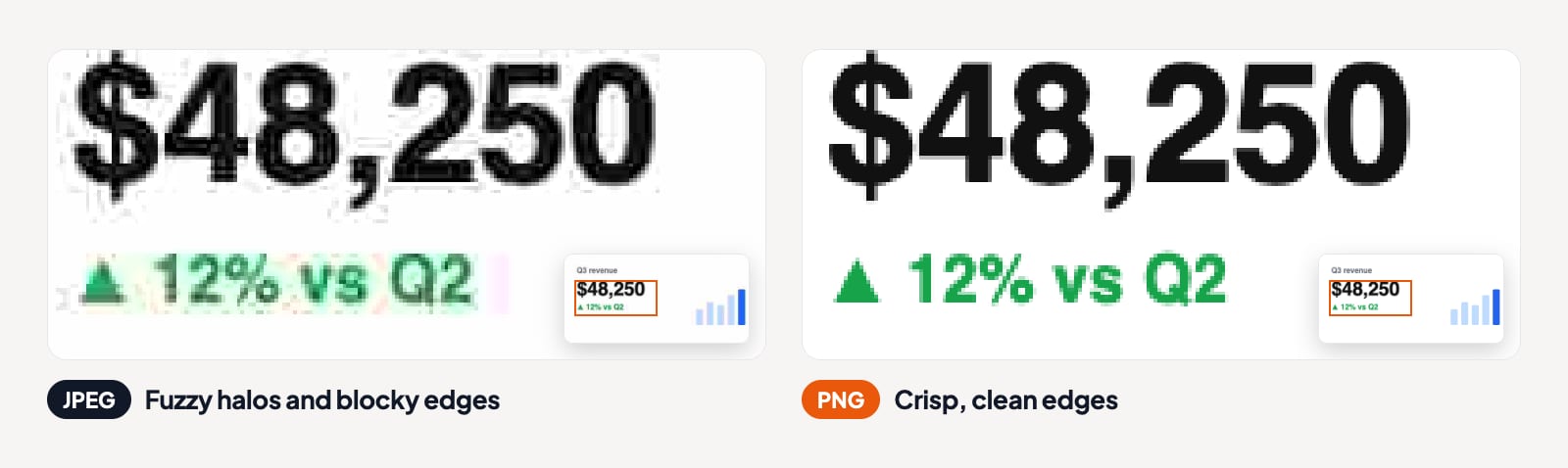
The catch is that JPEG loses a little more detail every time you edit and save the same file. After several rounds, you may notice blocky patches, blurry details and fuzzy halos around text, often called compression artifacts.
How PNG Compression Works
PNG takes the opposite approach. It shrinks a file by finding patterns, like large areas of the same color, and storing them more efficiently, without changing any pixels. When you open a PNG, you get back exactly what you saved.
That makes PNG ideal for images with sharp lines, solid colors and text. A screenshot of a spreadsheet, a logo or a chart stays crisp and clean as a PNG, while the same image saved as a JPEG often shows fuzzy halos around letters and lines.
PNG also supports transparency, so parts of the image can be fully or partly clear. That's why logos, icons and product cutouts are usually saved as PNG files, since they can sit on any background without a white box in the way.
The biggest tradeoff with PNG is file size. A full-color photo saved as a PNG is often several times larger than the same photo saved as a high-quality JPEG, which slows down websites and fills up storage.
Is PNG Better Quality Than JPEG?
PNG keeps more quality than JPEG, because it never throws away image data. But "better quality" doesn't always mean "better choice." For a typical photo, a high-quality JPEG looks nearly identical to a PNG while taking up far less space.
Think of the difference this way. PNG is the right pick when every pixel needs to stay exact, like text, logos and sharp graphics. JPEG is the right pick when the image is a photo and a smaller file matters, like websites, email and social media.
When to Use JPEG vs PNG
Here's a quick decision guide for the most common situations.
| What you're saving | Best format | Why |
|---|---|---|
| Photos from your phone or camera | JPEG | Small files with great quality for real-world scenes |
| Photos for a website or blog | JPEG | Faster page loading |
| Logos and icons | PNG | Sharp lines and transparent backgrounds |
| Screenshots | PNG | Crisp text and interface details |
| Charts, diagrams and infographics | PNG | Clean lines and solid colors |
| Product photos with no background | PNG | Transparency for any page color |
| Photos for printing | High-quality JPEG or PNG | Use the largest, least compressed file you have |
| Images you'll keep editing | PNG | No quality loss with each save |
| Email attachments | JPEG | Smaller files that send without problems |
What About WebP and Other Formats?
JPEG vs PNG isn't the whole story anymore. WebP, a newer format, supports both lossy and no-loss compression, plus transparency, and usually creates smaller files than JPEG or PNG at similar quality. All modern browsers support WebP, which makes it popular for websites that need fast loading.
AVIF is another modern format with even stronger compression, though some older apps can't open AVIF files. For everyday use, JPEG and PNG remain the safest choices, because every device, app and platform supports both.
How to Keep Image Quality High
Whichever format you choose, a few habits protect your images from losing detail.
Keep an original master file. Save your untouched original, and export copies for sharing. That way you never edit a file that has already been compressed many times.
Avoid re-saving JPEGs again and again. Each save removes a little more detail. Make all your edits, then export a JPEG once at the end.
Use a high quality setting. When you export a JPEG, a setting around 80% to 90% keeps photos sharp without bloating the file.
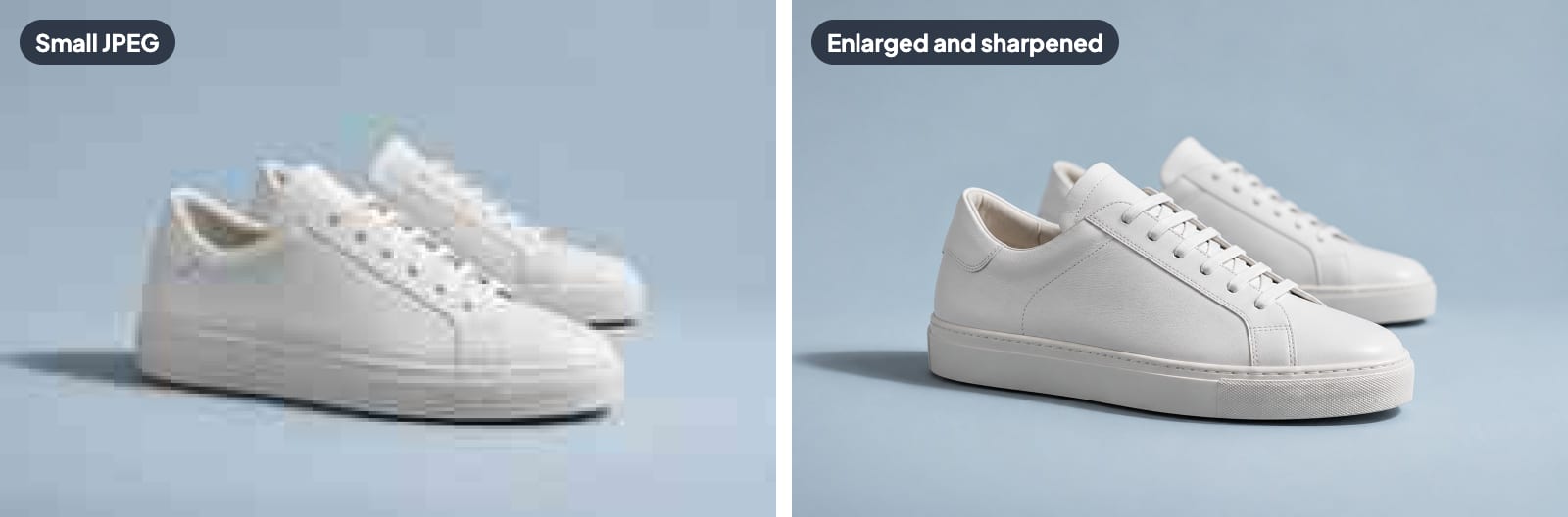
Don't convert JPEG to PNG to fix quality. Converting a blurry JPEG into a PNG doesn't bring back lost detail. The PNG simply keeps the damage exactly as it was.
Fix small or blurry images with AI. If a JPEG looks blurry because it's too small, Aragon's Image Upscaler enlarges the image so it stays sharp at a bigger size. For photos that look fuzzy or out of focus, Aragon's Unblur Image tool sharpens faces and details, and Aragon's Photo Enhancer improves the overall clarity and quality of a photo.
Swap the background the easy way. If you need a product or portrait on a clean background for your website, Aragon's Background Changer replaces the background with a solid color, a scene or an image you upload.
Common JPEG and PNG Mistakes
Saving logos as JPEG. Logos get fuzzy outlines and lose their transparent background. Always keep a PNG version of your logo.
Saving photos as PNG for the web. Large PNG photos slow down your website and use more data on phones. Use a high-quality JPEG or WebP for photos online.
Editing a JPEG over and over. Every save stacks more compression damage. Work from a master file and export once.
Expecting a format change to fix a bad image. Changing the file type never restores lost detail. Start from the best original you have.
Choose the Right Format Every Time
The JPEG vs PNG decision comes down to what's in the image. Use JPEG for photos where a small file matters, and use PNG for logos, screenshots, graphics and anything that needs a transparent background. Keep a master file, export once, and use AI tools to fix images that start out small or blurry.
When an image needs a quality lift, Aragon gives you AI tools to enlarge, sharpen and clean up photos in a few clicks.
Related Aragon Tools
- Photo Restoration repairs scratches, creases and faded color in old scanned photos.
- Color Correction fixes brightness, contrast and color balance automatically.
Related Reading
- Instagram Reel Size and Specs for 2026
- How to Restore Old Photos With AI, From Scan to Print
- Best AI Photo Editors in 2026, Free and Paid
FAQs About JPEG vs PNG
What is the difference between JPG and PNG?
JPG uses lossy compression to create small files for photos, while PNG uses no-loss compression that keeps every pixel and supports transparent backgrounds. JPG works best for photos, and PNG works best for logos, screenshots and graphics.
Is PNG better quality than JPEG?
PNG keeps more quality because it never removes image data, but a high-quality JPEG looks nearly identical for most photos. Choose PNG for sharp graphics and text, and JPEG for photos where file size matters.
Should I save photos as JPEG or PNG?
Save photos as JPEG in most cases, since the files are much smaller and the quality difference is hard to see. Use PNG only when you need transparency or plan to keep editing the photo.
Does converting JPEG to PNG improve quality?
No, converting a JPEG to PNG doesn't add back lost detail. The PNG keeps the image exactly as the JPEG looked, including any blur or compression damage.
Why does my logo have a white box around it?
Your logo was probably saved as a JPEG, which doesn't support transparency. Save the logo as a PNG with a transparent background, and the white box disappears.
Is JPG or PNG better for printing?
Both formats print well when the file has enough pixels for your print size. Use the biggest, least compressed version you have for the sharpest result.