How to Change the Background Color on an Instagram Story

You pick a great photo for your Instagram Story, and the background around it is plain black or a color that clashes with the picture. It's a small detail, but it makes the Story look rushed, so people tap through to the next one.
Instagram lets you change that background color right inside the app, but the tools are a little hidden. The trick most people miss is that you have to press and hold on the screen, not just tap.
In this guide, you'll learn how to change Instagram Story background color on iPhone and Android, with steps for solid colors, exact color matches, gradients and shared posts, plus quick fixes when the color won't fill the screen.
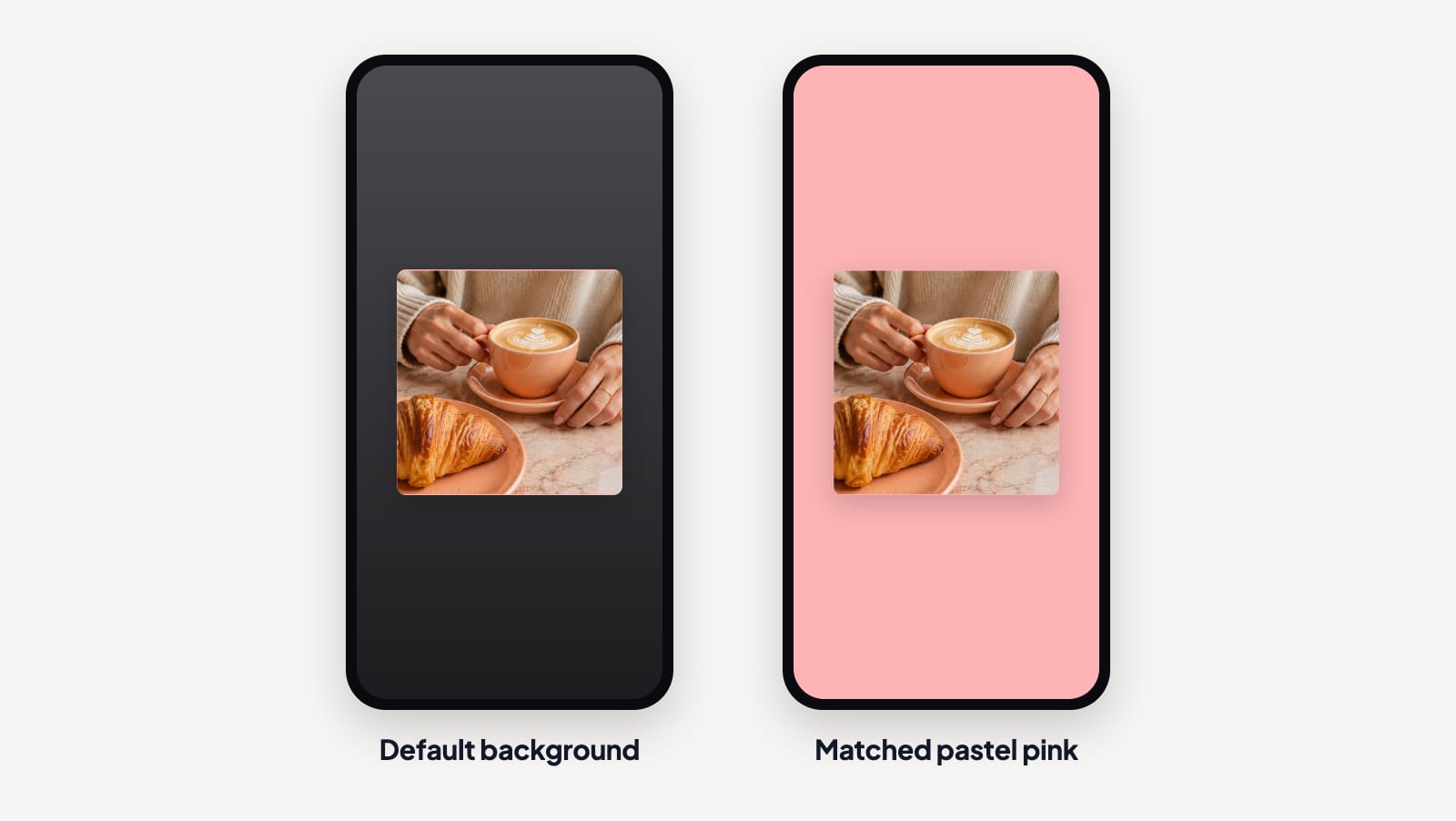
How to Change the Background to a Solid Color
The Draw tool is the quickest way to fill the whole Story screen with a single color. The steps are the same on iPhone and Android.
- Start a new Story. Tap the plus icon at the top of the Instagram app and choose Story.
- Pick any photo from your gallery. The new color covers the whole photo, so any picture works for this step.
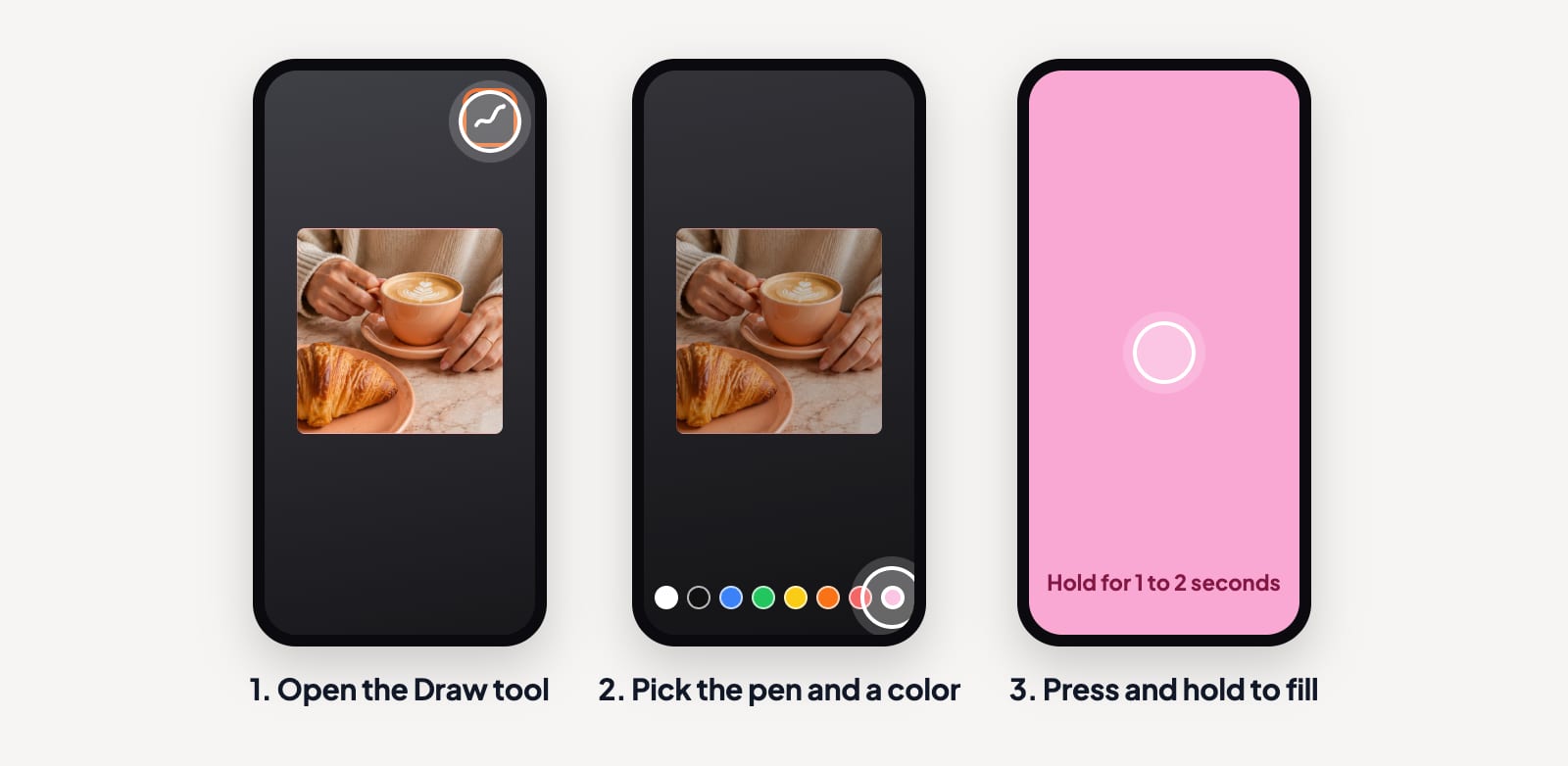
- Open the Draw tool. Tap the squiggly line icon at the top of the screen. If you don't see the icon, tap the three dots and choose Draw.
- Choose the pen and a color. Select the pen brush at the top, then tap a color from the row of colors at the bottom.
- Press and hold anywhere on the screen. Keep your finger on the screen until the color fills the whole background.
- Tap Done. Now add text, stickers, a link or a photo on top of the new background.
Need a shade that isn't in the color row? Press and hold any color circle to open a full color slider, then slide your finger to pick the exact shade.
How to Match an Exact Color With the Eyedropper
The eyedropper copies a color from a photo, so your background matches your brand, your outfit or a color in your post.
- Add a photo to your Story that includes the color you want, like your logo or a product.
- Open the Draw tool and tap the eyedropper icon on the left side of the color row.
- Drag the eyedropper over the photo until it sits on the exact color.
- Press and hold anywhere on the screen to fill the background with that color.
If you post for a brand, try this. Save a small image of your brand color on your phone. Whenever you create a Story, add that image, copy the color with the eyedropper and fill the background with your exact brand shade.
How to Use a Gradient Background for a Text Story
For text Stories, like quotes, announcements and questions, Instagram's Create mode offers ready-made gradient backgrounds.
- Open the Story camera and swipe to Create mode, or tap the "Aa" icon.
- Tap the round color button at the bottom of the screen to switch between gradient colors.
- Type your message and choose a font and text color.
- Tap Done to finish and share the Story.
How to Change the Background Behind a Shared Post
When you share a feed post or Reel to your Story, Instagram adds a background color automatically. You can replace that color with any shade.
- Tap the share icon under the post and choose Add to Story.
- Open the Draw tool from the top of the screen.
- Pick a color from the color row, the color slider or the eyedropper.
- Press and hold on the empty area around the post. The color fills the background, and the post stays on top.
If the color covers the post by mistake, tap Undo and press and hold on the empty space around the post.
How to Add a See-Through Color Over a Photo
Sometimes you want color on the screen while keeping the photo visible. The highlighter brush adds a see-through color layer on top of the photo.
- Add a photo to a new Story.
- Open the Draw tool and choose the highlighter brush.
- Pick a color, then press and hold anywhere on the screen.
The photo stays visible under a light tint, which makes text easier to read. To show part of the photo again, like a face or a product, use the eraser brush and wipe the color away from that area.
What Background Color Works Best for Instagram Stories?
The best background color matches your photo, keeps your text easy to read and fits the mood of your Story. These simple guidelines help every time.
- Match a color from your photo. A color copied with the eyedropper ties the background to the photo, so the Story looks planned.
- Keep text easy to read. Use dark text on light colors like pastel pink or cream, and white text on dark or bold colors like navy or hot pink.
- Stick to two or three brand colors. Using the same colors across your Stories makes your account easy to recognize.
- Use calm colors for long text. Light, simple backgrounds work better than bright colors when people need to read several lines.
- Keep important text in the middle. Instagram shows your profile name at the top and the reply bar at the bottom, so place key words in the center of the screen.
Why Can't I Change My Instagram Story Background Color?
If the background won't fill with color, one of these quick fixes usually solves the problem.
- Press and hold rather than tapping. A quick tap only selects a color. Keep your finger on the screen until the color fills the background.
- Use the right brush. The pen and highlighter brushes fill the screen, but some other brushes don't.
- Update the Instagram app. Older versions may show tools in different places or miss newer features.
- Restart the app. Close Instagram completely and open the app again if the Draw tool stops working.
How to Fix a Busy Photo Before Posting a Story
Sometimes the real problem is the background inside your photo. A messy room, a crowded street or a cluttered desk pulls attention away from you or your product, no matter which color fills the Story around the photo.
Clean up the photo before you open Instagram. Aragon's Background Changer replaces the background in your photo with a solid color, a scene or an image. Pick a color that matches your Story background for a clean, branded look. For product photos, Aragon's White Background tool places your item on a clean white background, and Aragon's Pink Background tool adds a light pink background that suits pastel Stories.
You can also upload the photo to Aragon's Quick Chat Editor and type the change, like "replace the messy room with a pale pink wall." Aragon includes top image models like GPT Image and Nano Banana on one subscription, so the same account can create a new background scene from a written description.

Stories use a tall 9:16 shape. If your photo is wide or square, Aragon's Image Extender adds more space above and below the picture, so the photo fills the Story screen without awkward cropping.
Make Your Stories Stand Out With the Right Background Color
Changing your Instagram Story background color takes only a few taps. Use the Draw tool for solid colors, the eyedropper for exact matches, Create mode for gradients and the highlighter brush for a see-through tint. Keep your text easy to read, stick to a few brand colors and clean up busy photos before posting.
When a photo needs a cleaner background before it goes into your Story, Aragon changes the background with AI, so the photo and the Story colors work together.
Related Aragon Tools
- Photo Enhancer improves the overall clarity and quality of your photos.
- Color Correction fixes brightness, contrast and color balance automatically.
Related Reading
- Instagram Reel Size and Specs for 2026
- Pink Background Aesthetic Ideas for Photos, Slides and Wallpapers
- Green Screen Backgrounds - Free Ideas and How to Use Them
FAQs About Instagram Story Backgrounds
How do you change the background color on an Instagram Story?
Open the Draw tool, choose the pen brush and a color, then press and hold anywhere on the screen. The color fills the whole background, and you can add text, stickers or a photo on top.
Why won't my Instagram Story background change color?
The most common reason is tapping the screen rather than pressing and holding. Use the pen or highlighter brush, keep your finger on the screen until the color fills the background, and update the Instagram app if the problem continues.
How do I get a custom color for my Instagram Story?
Press and hold any color circle in the Draw tool to open the full color slider. To copy an exact color from a photo, use the eyedropper.
Can I add a background color without hiding my photo?
Yes, the highlighter brush adds a see-through color layer, so the photo stays visible. You can also fill the screen with a solid color first and add your photo on top as a sticker from your gallery.
How do I change the background behind a shared post?
After you tap Add to Story, open the Draw tool, pick a color and press and hold on the empty space around the post. The new color fills the background while the post stays visible.
Can I change the background color after posting a Story?
No, Instagram doesn't let you edit a Story once it's posted. Delete the Story, create it again with the new background color and post the updated version.