Green Screen Backgrounds - Free Ideas and How to Use Them

You've seen it a hundred times without noticing. The weather forecaster standing in front of a moving map, the YouTuber who seems to film from a beach, the product photo floating on a clean studio backdrop. Most of those scenes start with a plain green screen background and a bit of editing.
This guide explains how a green screen works, how to set one up and light it at home, which backgrounds look best when you swap them in, and how to fix the green halo that makes so many edits look fake. You'll also learn when AI tools let you skip the green screen entirely and still get a clean, natural result.

What Is a Green Screen Background?
A green screen background is a solid, bright green backdrop placed behind a person or object. Editing software then removes every pixel of that exact green and replaces it with a new image or video, a technique called chroma keying.
Green works so well for 2 reasons. First, bright green sits far away from every human skin tone, so the software can remove the background without touching the person. Second, digital camera sensors capture green with more detail than other colors, because most sensors use twice as many green pixels as red or blue. That extra detail gives the software a cleaner line between the subject and the background.
Blue screens work the same way and were the standard in film for decades. Blue is still a better choice when your subject wears green, or when the final scene is dark, since blue spills less color onto the subject.
How to Set Up a Green Screen at Home
A good green screen result depends far more on setup than on the editing. These steps help you get a clean background on the first try.
Choose the Right Screen
Pick a screen made for chroma keying, in fabric, paper or a pull-up panel. Fabric is cheap and easy to store, but it wrinkles, and every wrinkle creates a shadow that's harder to remove. Collapsible panels and paper rolls stay flatter and give a more even color.
Stretch Out Every Wrinkle
Pull fabric tight with clamps or a frame, or steam out creases before you start. A flat, smooth screen has the same green from corner to corner, which makes the editing step easier.
Give Your Subject Some Space
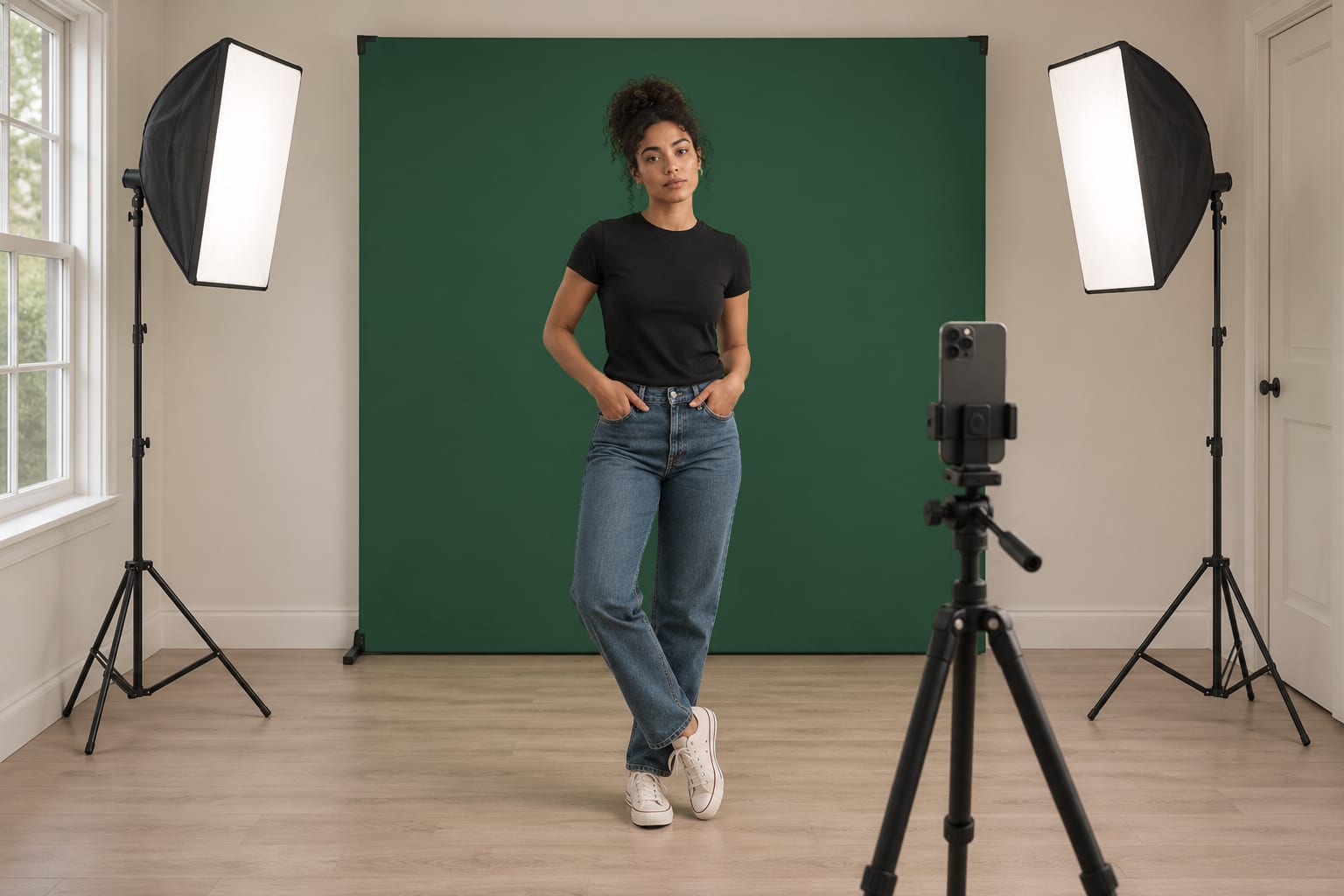
Place the person or product at least 6 feet in front of the screen. This distance stops shadows from landing on the green and reduces color spill, the green glow that reflects off the screen onto skin, hair and clothing.
Avoid Green Clothing and Shiny Items
Anything green on your subject disappears along with the background, so skip green shirts, scarves and jewelry. Shiny items like glasses, watches and glossy fabrics reflect the screen and turn green in spots.
How to Light a Green Screen
Lighting is where most home green screens go wrong. The goal is simple, even light on the screen and separate light on the subject.
Light the screen evenly. Place 2 lights at 45-degree angles on either side of the screen, aimed at the green. You want the same brightness from top to bottom, with no hot spots or dark corners.
Light the subject separately. Use a main light in front of your subject, slightly to one side, so their face has natural shape and shadow. Keep this light from hitting the green screen directly.
Add a back light if you can. A small light behind the subject, aimed at their hair and shoulders, creates a thin bright outline that separates them from the background and cancels out green spill.
Avoid mixing light colors. Use lights with the same color temperature, so the subject doesn't look orange on one side and blue on the other.
Check with your phone. Take a quick test photo and zoom in to check the green before you start. If the green looks blotchy or patchy, adjust the lights until the color looks even.
Green Screen Background Ideas to Swap In
Once the green is gone, you can place your subject almost anywhere. These backgrounds look natural and work well for photos, videos and social content.
| Background idea | Best for | Tip for a natural look |
|---|---|---|
| Modern home office | Video calls, tutorials, business content | Keep the background slightly blurred, like a real camera would |
| Bookshelf | Coaching, education, interviews | Choose warm light that matches your face lighting |
| City skyline | Real estate, news, travel content | Match the time of day to your lighting |
| Beach or tropical scene | Travel, vacation and fun social posts | Add warm, sunny light on the subject |
| Plain studio color | Headshots, product photos, profile pictures | Pick white, gray or a light-toned color that flatters skin |
| Cozy cafe | Lifestyle, food and podcast content | Use a blurred background for depth |
| Outer space | Gaming, kids' content, creative projects | Add a cool, blue light on the subject |
| Nature and forest | Wellness, outdoor brands, calm content | Choose daylight that matches your setup |
| Holiday scene | Seasonal cards and social posts | Add warm lights in the background for a festive glow |
| Gradient color | Thumbnails, ads and modern graphics | Choose colors that contrast with your outfit |
The best green screen background matches the light in your original photo. If your subject is lit from the left with warm light, choose a background where the sun or lamps come from the left with the same warm tone.
How to Replace a Green Screen in a Photo
Replacing a green screen in a photo takes a few simple steps.
- Remove the green. Open your photo in an editor with a chroma key or background removal tool, and select the green area. The tool removes the background and leaves your subject on a transparent layer.
- Add the new background. Place your new image behind the subject and resize it so the scale looks realistic.
- Match the light and color. Adjust brightness and warmth so the subject and the new background look like they share the same light.
- Check the outline. Zoom in on hair, hands and clothing to make sure no green halo remains.
For a faster route, Aragon's Background Changer replaces the background in a photo with a solid color, a scenic option or an image you upload. You don't need to select colors or adjust settings, so the whole swap takes a few clicks.
How to Fix Green Outlines and Color Spill
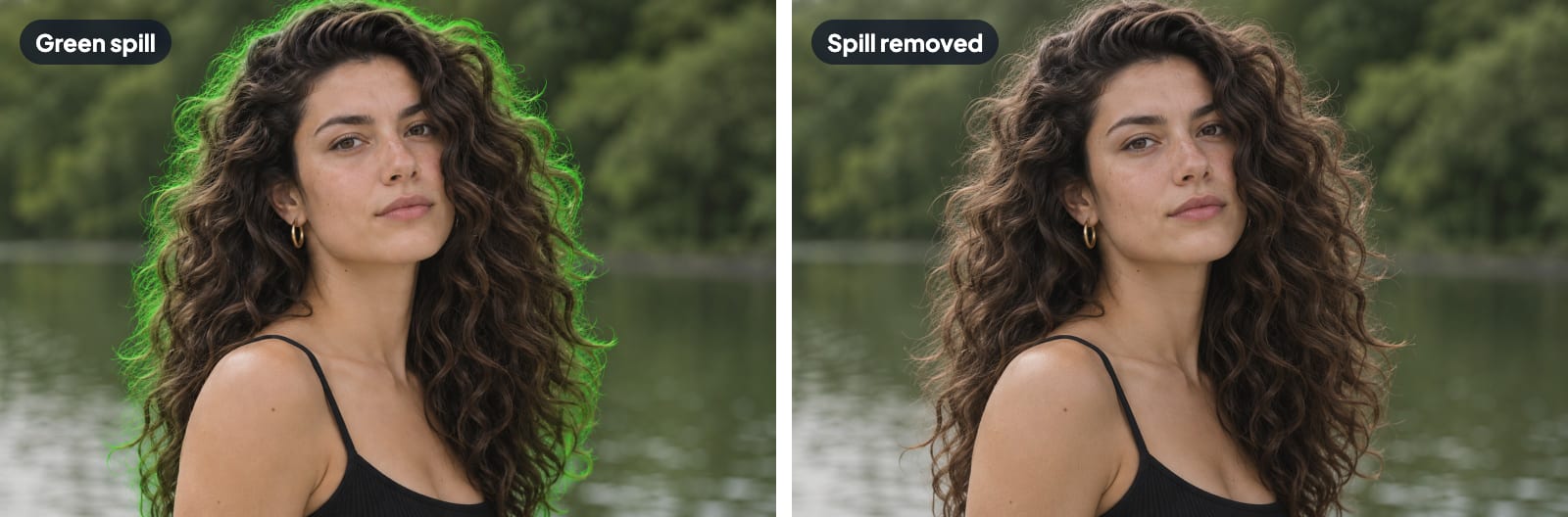
Green spill is the most common giveaway in green screen photos. It shows up as a thin green halo around hair and shoulders, or a green tint on skin and clothing near the screen.
Use spill suppression. Most chroma key tools include a spill or despill setting that removes leftover green from your subject. Increase it slowly until the green tint disappears.
Fix the color afterward. If skin still looks slightly green, Aragon's Color Correction tool balances brightness and color automatically, so skin tones look natural and healthy.
Prevent spill next time. More distance between the subject and the screen, plus a back light, cuts down spill before it happens.
Watch fine details. Flyaway hair, lace and see-through fabrics are the hardest areas to clean. Pull hair back or choose solid fabrics when you can.
Using a Green Screen for Video
Green screens are just as popular for video as for photos. YouTubers, streamers, teachers and businesses use them to place themselves in front of slides, game footage, branded backgrounds or virtual sets.
The setup rules stay the same for video, with a few extra points. Movement causes motion blur, which makes the green harder to remove, so keep gestures smooth and record at 60 frames per second if your camera offers that setting. Lighting also needs to stay steady for the whole recording, since flickering or shifting light changes the green from frame to frame.
If you'd rather skip the green screen setup for video, Aragon's Video Background Remover lets you upload a clip and remove or replace the background behind a person or product, with no green screen required.
Can You Change a Background Without a Green Screen?
Yes, AI tools can now change a background without any green screen. Instead of removing one specific color, AI recognizes the person or product in the photo and separates them from whatever sits behind them, whether that's a messy room, a busy street or a plain wall.
That means you can take a photo almost anywhere and change the background during editing. Aragon's Green Background tool places a clean green background behind any photo, which is handy if you want a green screen look for editing in another app. For any other look, the Background Changer swaps in a new color, scene or image.
A green screen still makes sense for live streaming, professional video and large productions where you need full control over every frame. For everyday photos, profile pictures, product shots and social posts, AI background tools save you the setup, the lights and the wrinkle-free fabric.
Pick Your Background and Get Started
A green screen background gives you the freedom to place your subject anywhere, as long as you set it up with care. Keep the screen flat and evenly lit, give your subject plenty of space, avoid green clothing, and match the light of your new background to your original photo.
If you'd rather skip the setup completely, Aragon changes the background in your photos with AI in a few clicks, no green screen needed.
Related Aragon Tools
- Image Extender adds more background around a photo so it fits a wide banner or video frame.
- Photo Enhancer improves the overall clarity and quality of your edited photos.
Related Reading
- Pink Background Aesthetic Ideas for Photos, Slides and Wallpapers
- Instagram Reel Size and Specs for 2026
- Best AI Photo Editors in 2026, Free and Paid
FAQs About Green Screen Backgrounds
How do I use a green screen background?
Hang a flat green screen behind your subject, light the screen evenly, and place the subject at least 6 feet in front of the green. Then use a chroma key or background removal tool to remove the green and add a new background.
Why is green used for green screens?
Green sits far away from every human skin tone, so editing software can remove it without touching the person. Digital camera sensors also capture more detail in green than in other colors, which gives a cleaner line between the subject and the background.
Can I change a background without a green screen?
Yes, AI background tools can change a background without a green screen. The AI recognizes the person or product in your photo and replaces everything behind them with a new color, scene or image.
What's the difference between a green screen and a blue screen?
Both work the same way, by removing one solid color from the background. Green is more common for digital cameras, while blue works better when the subject wears green or when the final scene is dark.
How do I get rid of the green around my hair?
Use the spill suppression setting in your editing tool to remove leftover green, then adjust the color if skin or hair still looks tinted. Next time, add a back light and move your subject farther from the screen to prevent the halo.
What size should a green screen be?
For a head and shoulders photo or video, a screen about 5 x 7 feet covers the frame for most setups. For full-body photos or movement, choose a screen at least 8 feet wide and tall enough to cover the floor area behind your subject.