How to Add Subtitles to a Video, Free Methods for Every Device

Many people watch videos without sound, whether they're on a train, in a waiting room or in bed late at night. When you talk in your video but there are no words on screen, those viewers have no idea what you're saying, so they move on to the next video. Add clear subtitles, and the same viewers can follow every word without turning on the sound.
This guide shows you how to add subtitles to a video for free on iPhone, Android, Windows, Mac and YouTube, using free tools that may already be on your phone or computer. You'll also learn the difference between subtitles and captions, how to create and upload an SRT file, and the simple style rules that make subtitles easy to read on any screen. Every method was checked in October 2026.
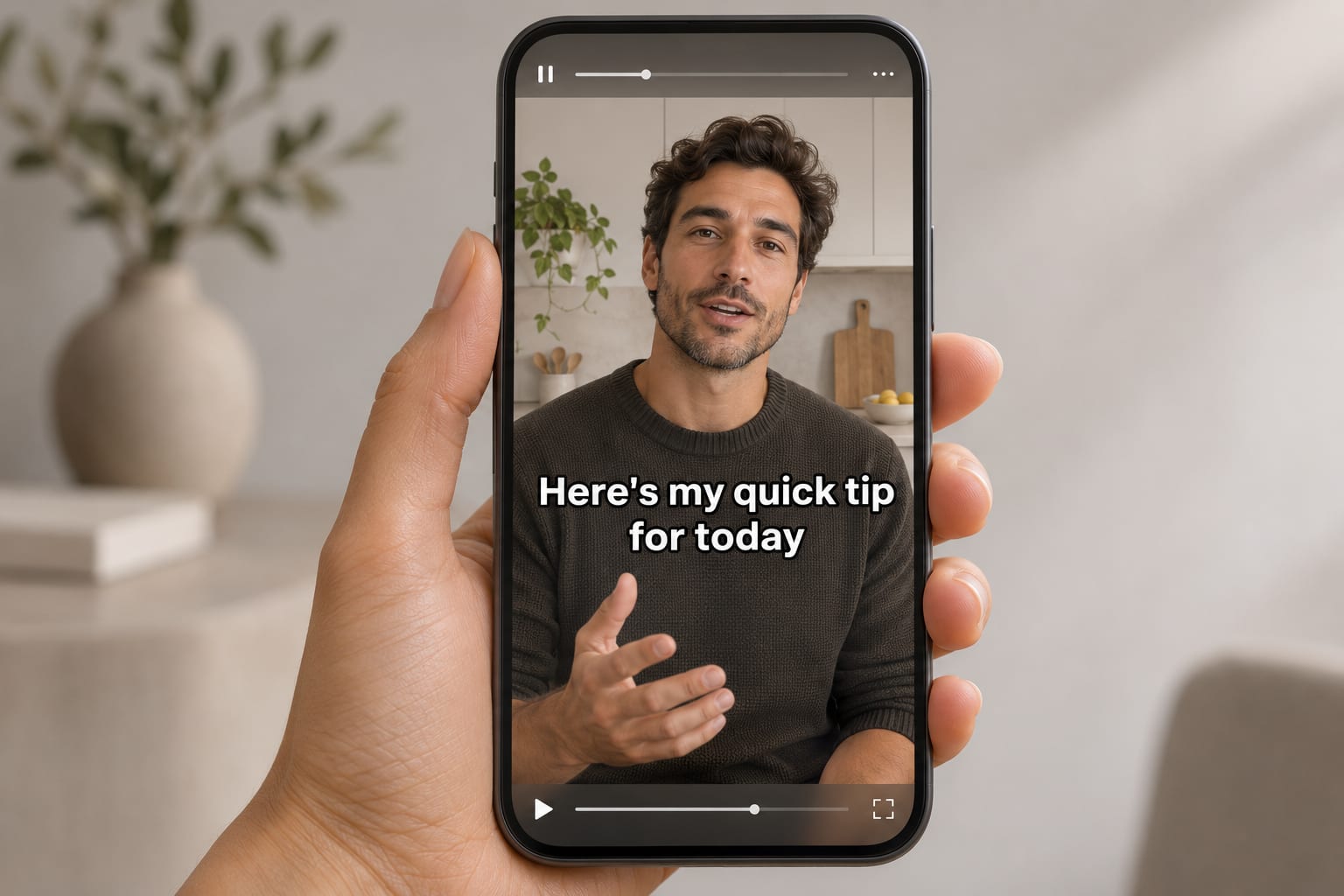
Subtitles vs Captions, What's the Difference?
People often use the words subtitles and captions as if they mean the same thing, but there's a useful difference.
Subtitles show the spoken words on screen. They're made for viewers who can hear the audio but don't understand the language, or who simply prefer to read along.
Captions show the spoken words plus important sounds, like [music playing], [door slams] or [laughter]. They're made for viewers who are deaf or hard of hearing, or anyone watching without sound.
You'll also see 2 more terms on most platforms.
- Closed captions can be turned on or off by the viewer, usually with a CC button. They live in a separate file or track.
- Open captions, also called burned-in subtitles, are part of the video image itself. They always show and can't be turned off, which makes them popular on social media.
How to Add Subtitles on YouTube
YouTube Studio lets you add subtitles for free, either automatically or by uploading a subtitle file.
- Open YouTube Studio in a web browser and select Subtitles from the left menu.
- Choose your video and click Add language, then pick the language in the video.
- Pick a method. You can upload an SRT file, type subtitles while the video plays, or use YouTube's automatic captions as a starting point.
- Review and fix mistakes. Automatic captions often misspell names, brands and technical words, so read through the full transcript before you publish.
- Publish. Viewers can now turn subtitles on and off with the CC button.
Subtitles added this way are closed captions, so they stay on YouTube and don't appear when you download the video file.
How to Add Subtitles on Windows
Windows 11 includes Clipchamp, a free video editor from Microsoft with built-in automatic captions.
- Open Clipchamp and import your video.
- Drag the video onto the timeline.
- Turn on autocaptions in the Captions panel and choose the spoken language.
- Edit the text to fix any mistakes, and adjust the font, size and position.
- Export the video. The subtitles appear on the video itself, and you can also download a transcript as an SRT file.
Clipchamp also runs in a web browser, so you can use the same steps on a Mac or a Chromebook.
How to Add Subtitles on iPhone
iPhone users have 2 simple free choices.
Use YouTube Studio. Upload your video to YouTube from your phone, then open YouTube Studio in your browser and follow the YouTube steps above to add and review subtitles.
Use the captions in your social app. Instagram and TikTok both create captions from your audio when you post a video. Turn on automatic captions before you share that video, read through the text and fix any words it got wrong. These captions usually stay inside the app rather than becoming part of the video file.
How to Add Subtitles on Android
Android users have 2 simple free choices.
Use YouTube Studio. Upload your video to YouTube from your phone, then open YouTube Studio in your browser and follow the YouTube steps above to add and review subtitles.
Use the captions in your social app. Instagram and TikTok both create automatic captions for videos you post. Turn on captions when you publish, then review the text for mistakes. These captions usually stay inside the app rather than becoming part of the video file.
How to Add Subtitles on Mac
Mac users can add subtitles in 2 free ways.
Use Clipchamp in your browser. The steps match the Windows version, with automatic captions and an SRT download.
Use iMovie for short videos. iMovie doesn't create automatic subtitles, but you can add text titles to each clip by hand. This works for short videos with only a few lines of speech.
How to Create and Add an SRT File
An SRT file is a simple text file that stores subtitles with their timing. Almost every video platform and editor accepts SRT files, which makes them the most flexible way to add subtitles.
Each subtitle in an SRT file has 3 parts, a number, the start and end time, and the text.
1
00:00:01,000 --> 00:00:03,500
Welcome to our quick guide.

2
00:00:03,600 --> 00:00:06,200
Today we'll show you 3 easy tips.
Here's how to create and use an SRT file in 4 steps.
- Get a transcript. Export an SRT from a tool like Clipchamp, or download the automatic captions from YouTube Studio.
- Fix the text. Open the file in any text editor, like Notepad or TextEdit, and correct spelling, names and punctuation.
- Save it with the right name. Keep the ".srt" ending, and for desktop players like VLC, give it the same name as your video file.
- Upload or import it. Add the file in YouTube Studio, or import it into your video editor as a caption track.
How to Make Subtitles Easy to Read
Good subtitles feel invisible, because viewers read them without effort and keep watching the video. Professional subtitle teams follow clear rules, and Netflix's timed text style guide is one of the most detailed public examples.
- Keep lines short. Aim for no more than about 42 characters per line and 2 lines on screen.
- Give viewers time to read. Keep each subtitle on screen for at least about 1 second and no more than about 7 seconds.
- Break lines naturally. Split lines between phrases, not in the middle of a name or a short phrase like "the red car."
- Use high contrast. White or yellow text with a dark outline or a dark box stays readable on any background.
- Place subtitles safely. On social media, keep subtitles above the bottom fifth of a vertical video and below the speaker's face, since app buttons and captions cover the bottom of the screen.
- Match the speech. Subtitles should appear when a person starts talking and disappear when they stop.

Tips for Better Automatic Subtitles
Automatic subtitles save hours of typing, but their accuracy depends on your audio.
Record clear audio. Use a microphone close to the speaker and cut down on background noise. Clean audio generates far more accurate subtitles.
Speak at a steady pace. Fast or mumbled speech leads to more mistakes in the transcript.
Always proofread. Automatic tools often get names, brands, numbers and technical terms wrong. Read every line before you publish.
Add sound descriptions for accessibility. If you want captions rather than subtitles, add important sounds like [phone ringing] by hand.
Create the Video, Then Add Subtitles
For many creators, making the video takes far more time than adding the subtitles. Aragon's Text to Video tool turns a short written idea into a video clip, and once you export the clip, you can add subtitles in any of the free editors.
Add Subtitles to Every Video
Now you know how to add subtitles to a video on any device, whether you use YouTube Studio, Clipchamp or the automatic captions in Instagram and TikTok. Pick the method that fits where your video will live, proofread the text, keep lines short and easy to read, and place subtitles where buttons and captions can't hide the words.
Subtitles take only a few extra minutes, and they help more people watch, understand and remember your videos.
Related Aragon Tools
- Image to Video turns a single photo into a short video clip.
- Video Enhancer makes existing footage clearer and sharper.
Related Reading
FAQs About Adding Subtitles to Videos
How do I add subtitles to a video for free?
Use a free tool like YouTube Studio, Clipchamp or the automatic captions in Instagram and TikTok. Most of these create automatic subtitles from your audio, and you can edit the text before you export or publish the video.
How do I add an SRT file to a video?
On YouTube, open YouTube Studio, select Subtitles, choose your video and upload the SRT file. In a video editor, import the SRT as a caption track, and for VLC, give the SRT file the same name as your video and keep both in the same folder.
What is the difference between subtitles and captions?
Subtitles show only the spoken words, while captions also describe important sounds like music or laughter. Captions are designed for viewers who are deaf or hard of hearing, or anyone watching without sound.
Can I add subtitles to a video on my phone?
Yes. Instagram and TikTok create automatic captions when you post a video from your phone, and you can upload a video to YouTube from your phone and add subtitles in YouTube Studio.
Should subtitles be burned in or separate?
Burned-in subtitles work best for social media, because they always show, whatever the viewer's caption settings. Separate subtitle files work best for YouTube and websites, because viewers can turn them on or off and choose a language.
What is the right length for a subtitle line?
Aim for no more than about 42 characters per line and 2 lines on screen at a time. Shorter lines are easier to read, especially on mobile phones.