fb-pixelSkip to main content
Aragon.ai
MiniMaxVideo model

MiniMax H3 - AI Video With Stereo Sound

MiniMax H3 is an AI video model for creating clips up to 15 seconds with stereo sound. Use text, images and reference media to guide the scene, camera movement, characters and sound in your video.

Create MiniMax H3 videos directly on Aragon with flexible duration, format and output options.

Cinematic Character Scene
MiniMax H3

Example prompt
  • Up to 15 seconds
  • Stereo sound
  • Six aspect ratios
  • Up to 2K native model output
  • Released Jul 31, 2026
9.1K+total reviews on
Overview

What Is MiniMax H3?

MiniMax H3 is MiniMax's multimodal AI video model for generating video from text, images and reference media. MiniMax released the model on July 31, 2026 with native stereo sound, clips up to 15 seconds and video resolution up to 2K.

The model can understand text, images, video and audio together. This gives you more ways to guide characters, products, movement, camera direction and sound when creating a video.

MiniMax H3 also follows detailed instructions for text, logos, brand elements and physical movement. This makes it useful for advertising, product videos, cinematic scenes, social clips and other creative video projects.

Capabilities

Key Features of MiniMax H3

MiniMax H3 combines stereo sound, clips up to 15 seconds, reference media, frame control and detailed prompt following in one AI video model.

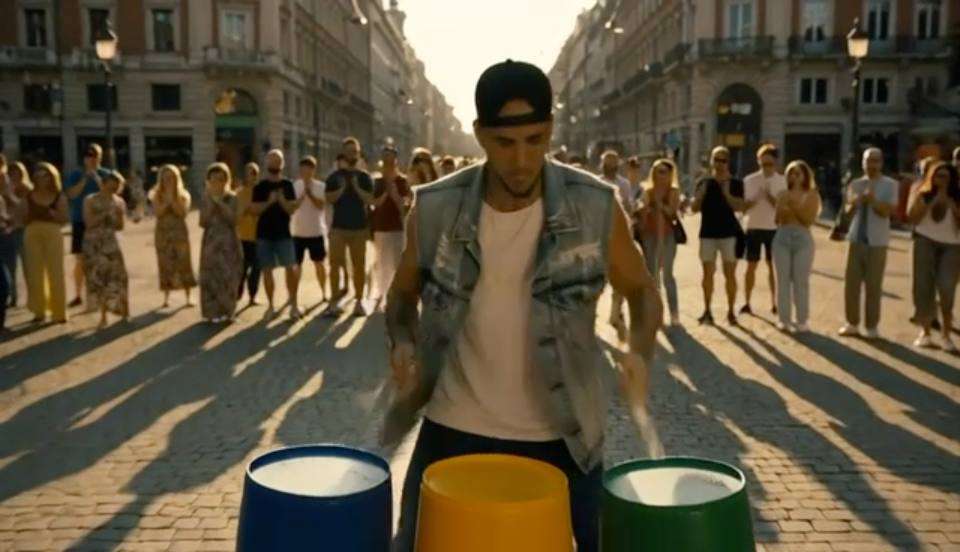
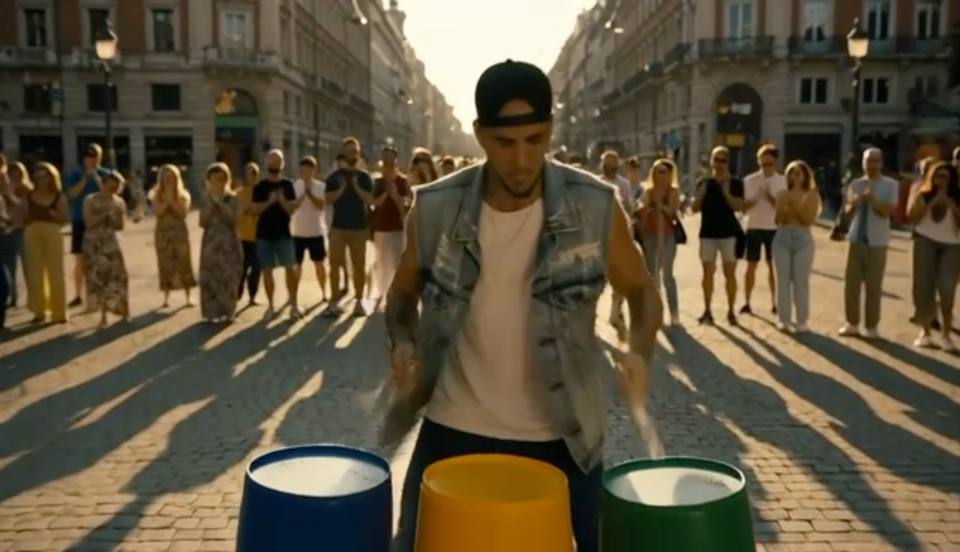
  • Street drummer playing upturned buckets in a busy city square
    01

    Stereo Sound Made With the Video

    MiniMax H3 generates stereo sound together with the picture, including voices, action sounds and background audio. Describe the sounds that belong in the scene so the finished clip feels connected from picture to sound.
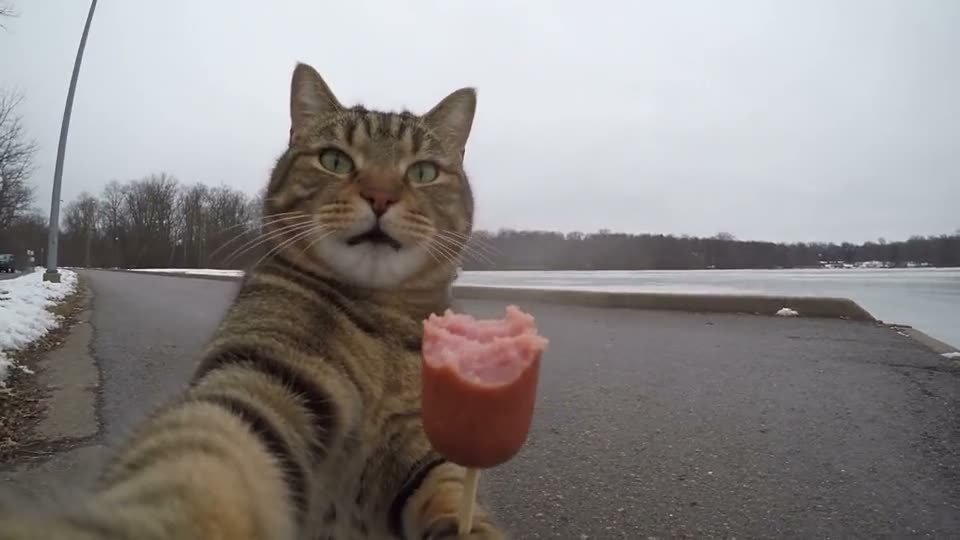
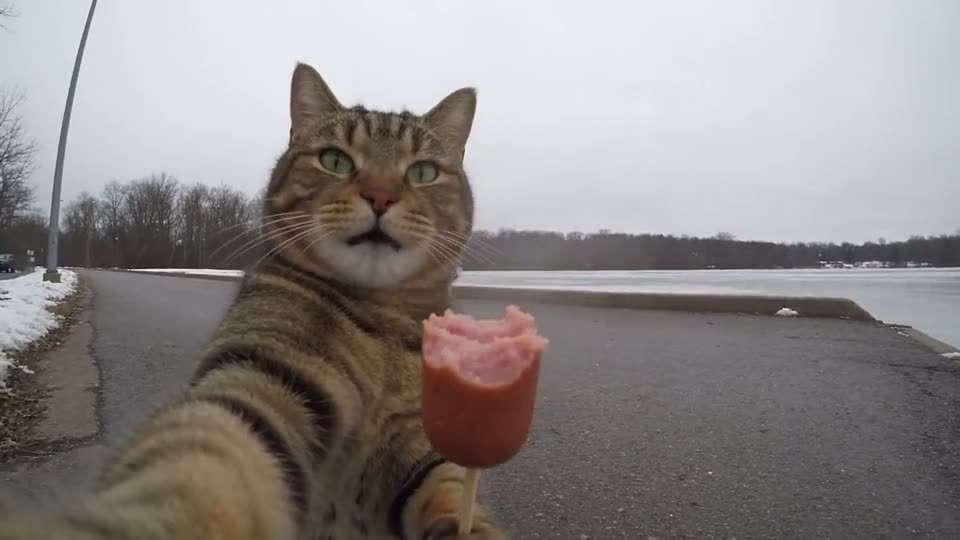
  • Cat filming a selfie vlog beside a frozen lake with a husky
    02

    Videos up to 15 Seconds

    Create clips from 5 to 15 seconds and choose a duration that gives the action enough time to develop. The longer clip range works well for product reveals, short ads, character scenes and social videos.

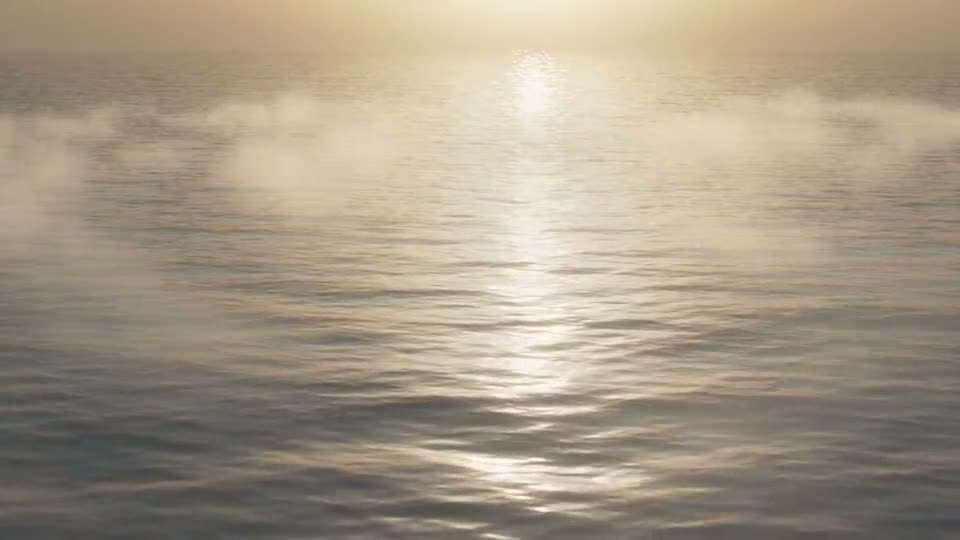
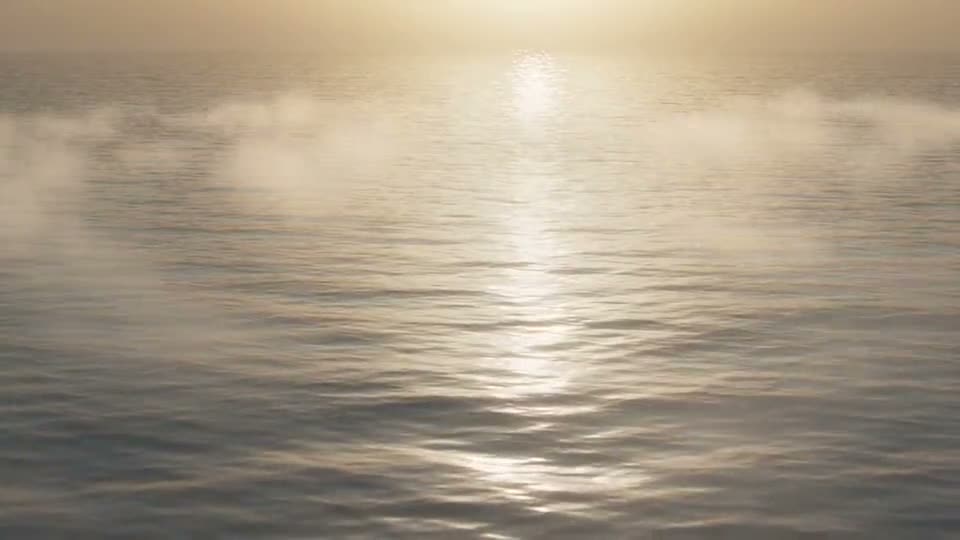
  • Camera descends from a calm sea into the eye of a hurricane
    03

    Start and End Frame Control

    Give MiniMax H3 a starting image and an ending image to guide how the video begins and finishes. The model creates the movement between those two frames while following your scene instructions.

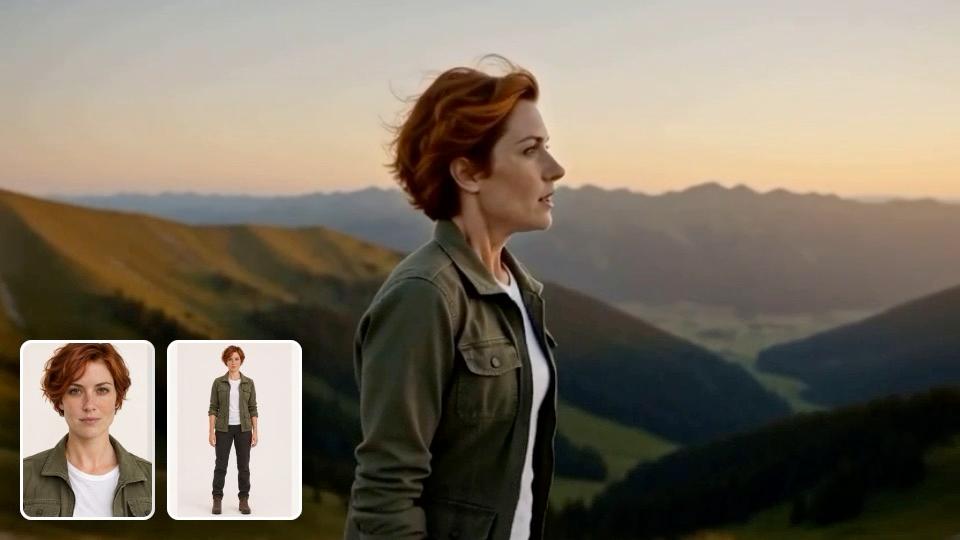
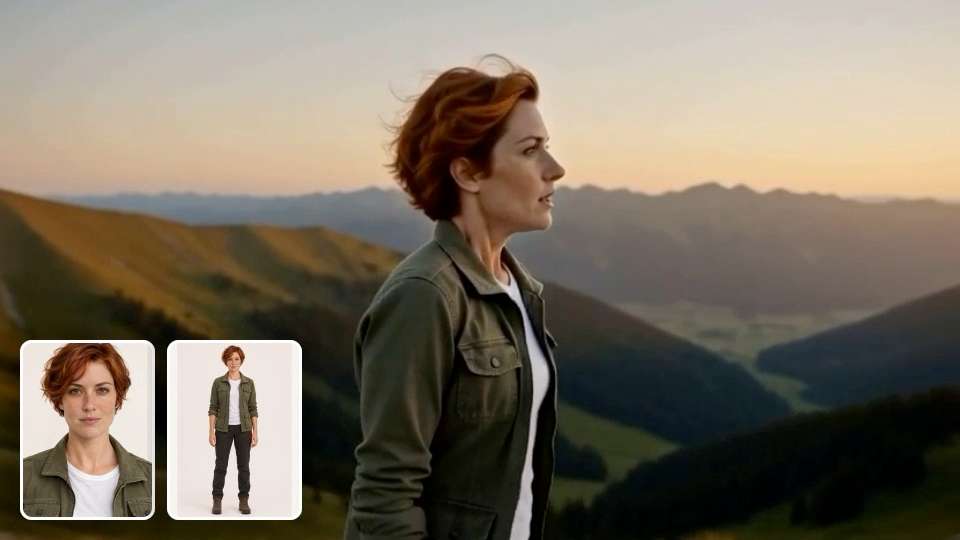
  • Red-haired woman in an olive jacket hiking a mountain ridge, shown with her two reference images
    04

    Reference Media for Consistency

    Use reference images, video or audio to give MiniMax H3 more information about a character, product, visual style or sound. References help the model follow important details across the generated scene.

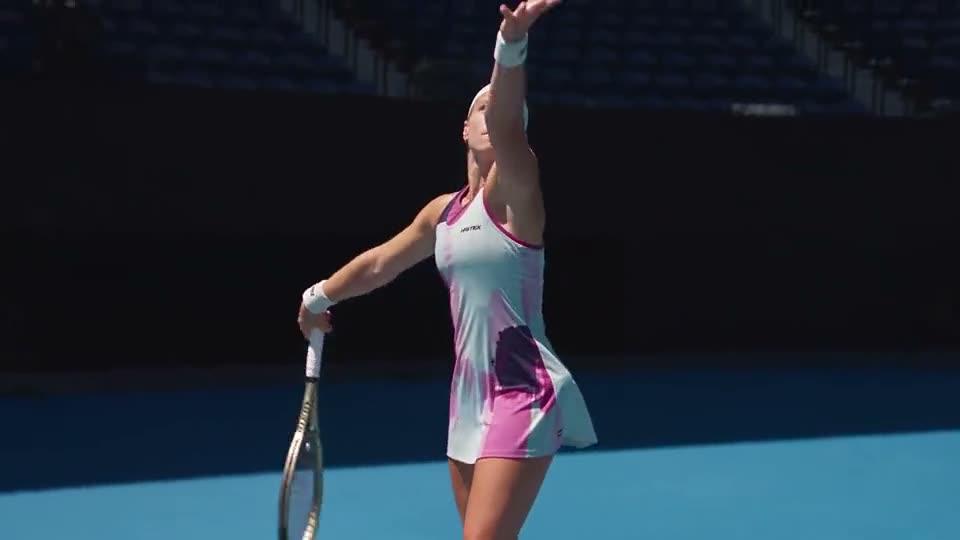
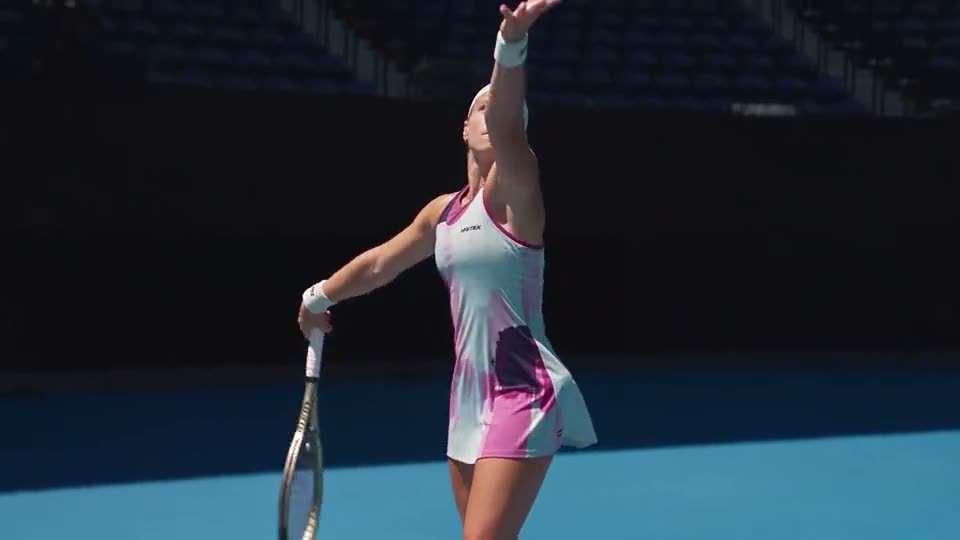
  • Tennis player in a slow-motion rally ending on a brand logo
    05

    Clear Text and Brand Details

    MiniMax H3 is designed to follow instructions for text, logos and other brand details inside video. This makes the model useful for product campaigns, branded scenes and advertising concepts where visual identity matters.

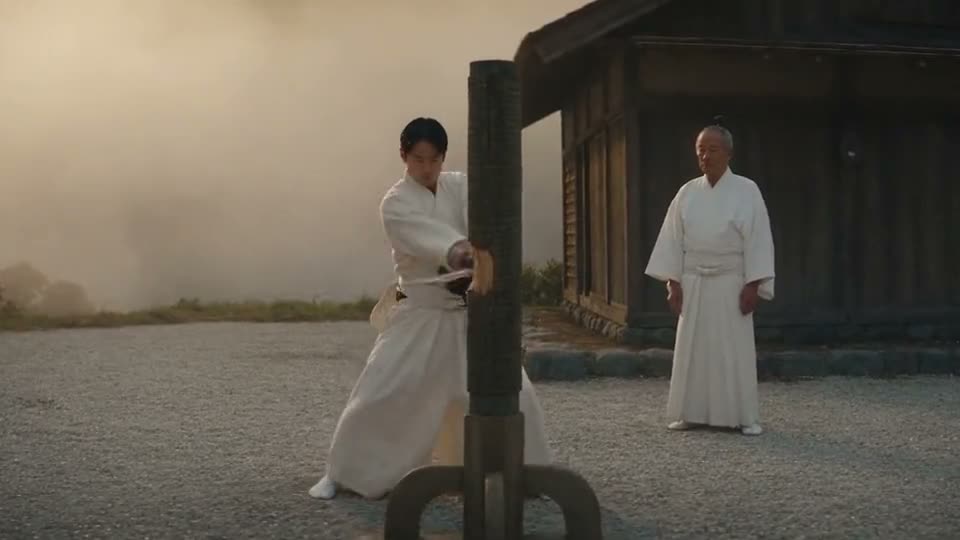
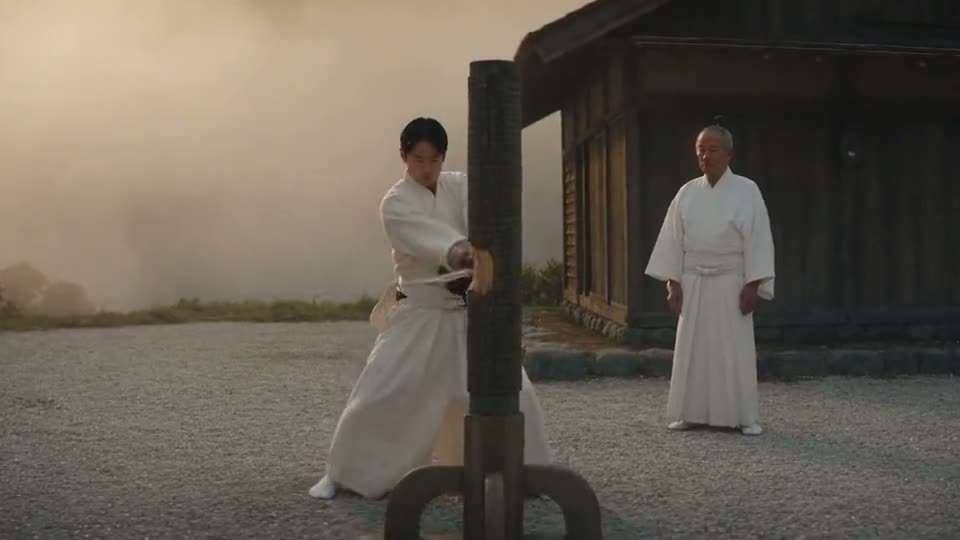
  • Samurai student training with a blade in a misty courtyard
    06

    Detailed Prompt Following

    MiniMax H3 can work with long, detailed instructions that describe the subject, action, camera, setting and sound. More specific prompts give the model a clearer direction for complex scenes and controlled movement.

Gallery

MiniMax H3 Video Gallery

See videos created with MiniMax H3 on Aragon, with the exact prompt used for each example. Copy a prompt and change the character, product, action or setting for your next video.

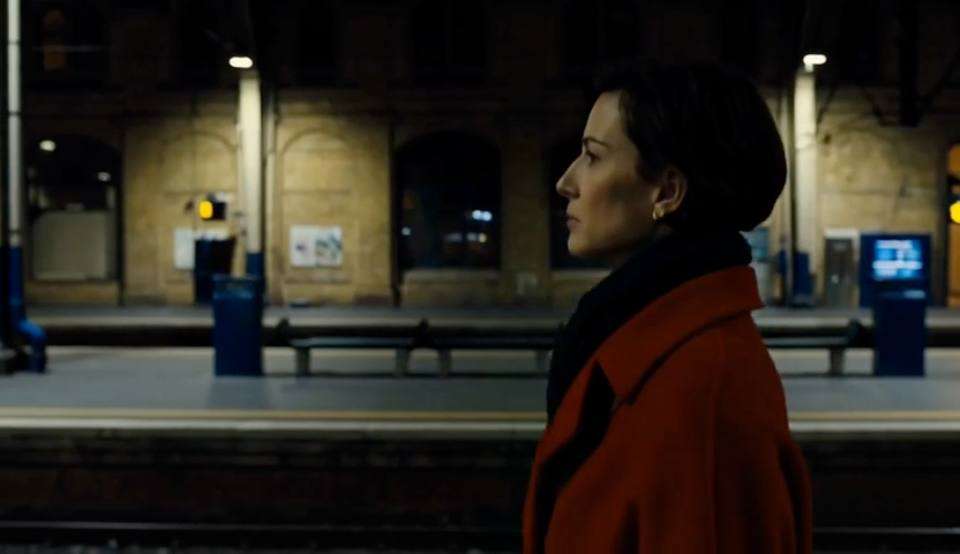
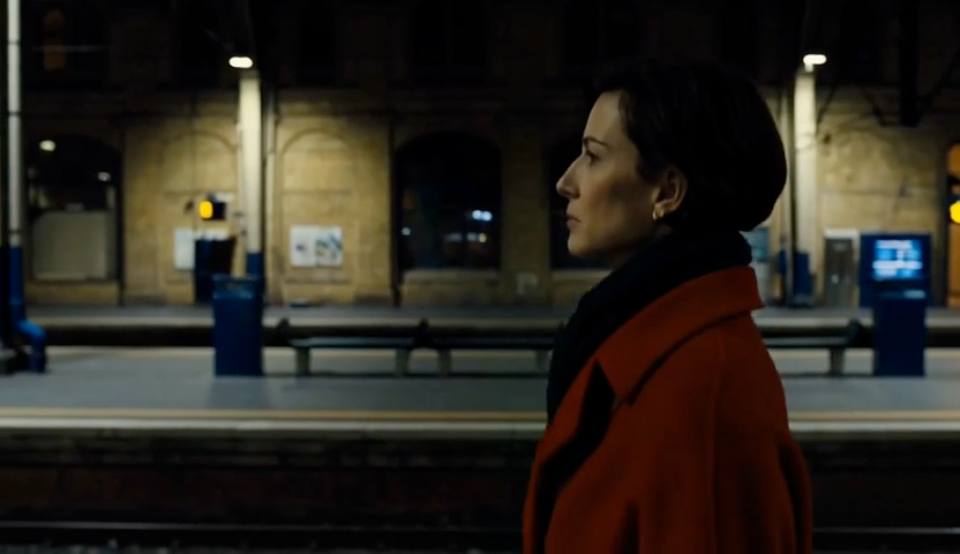
  • Cinematic Character Scene

    Cinematic Character Scene

    Prompt

    A woman in a red coat walks through a quiet train station at night. The camera tracks beside her as light from passing trains moves across the platform. Her footsteps echo through the station while a distant train approaches.

    Try it
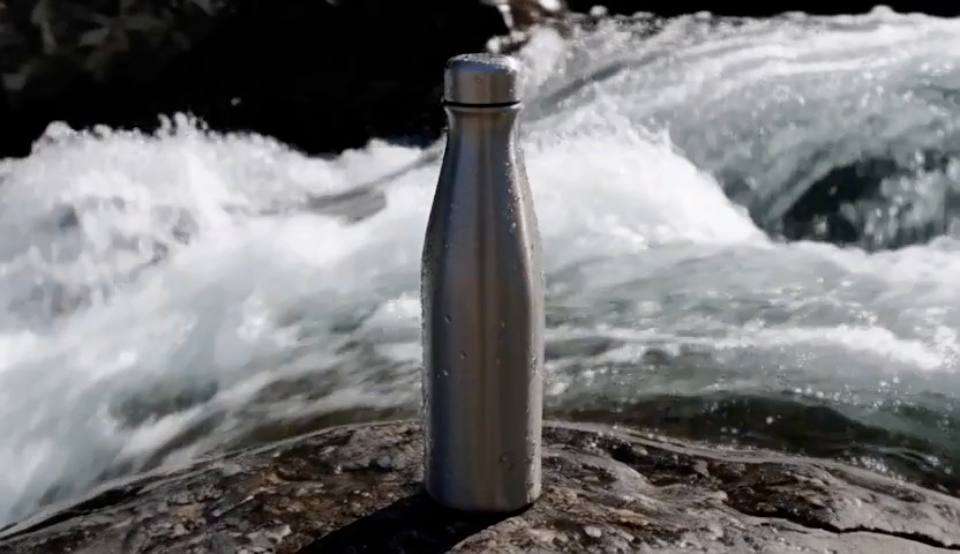
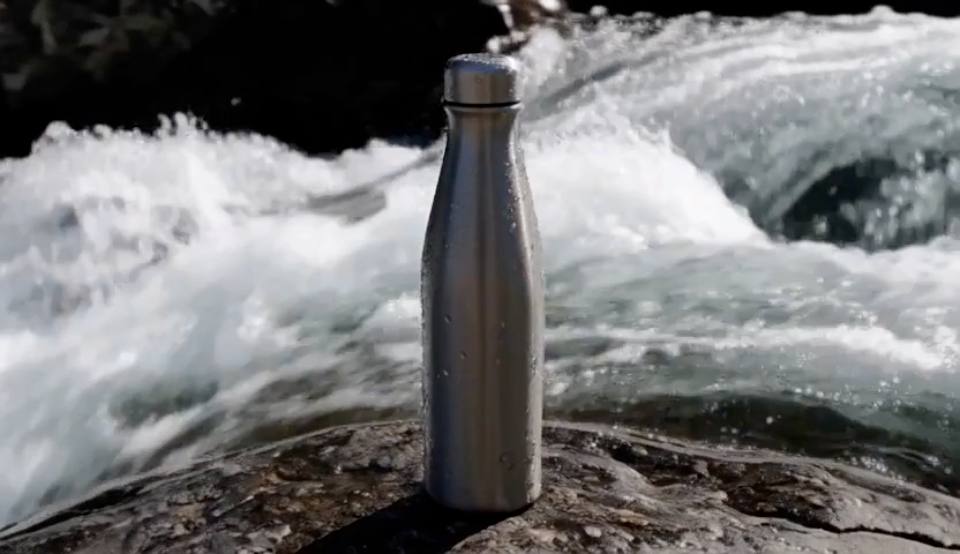
  • Product Commercial

    Product Commercial

    Prompt

    A silver sports bottle stands on a dark rock beside a fast mountain stream. Slow camera orbit around the bottle, water drops on the metal, bright morning light and clear flowing water sounds.

    Try it
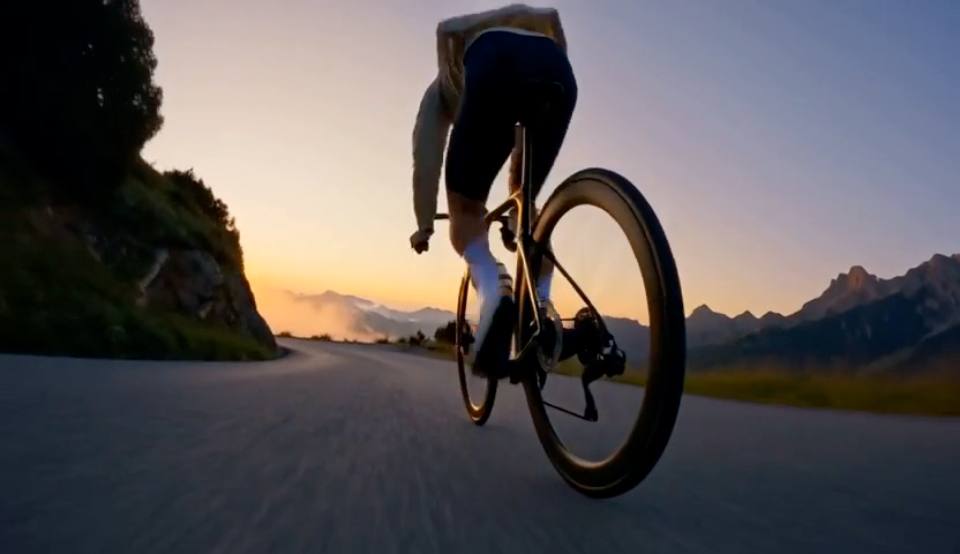
  • Action Scene

    Action Scene

    Prompt

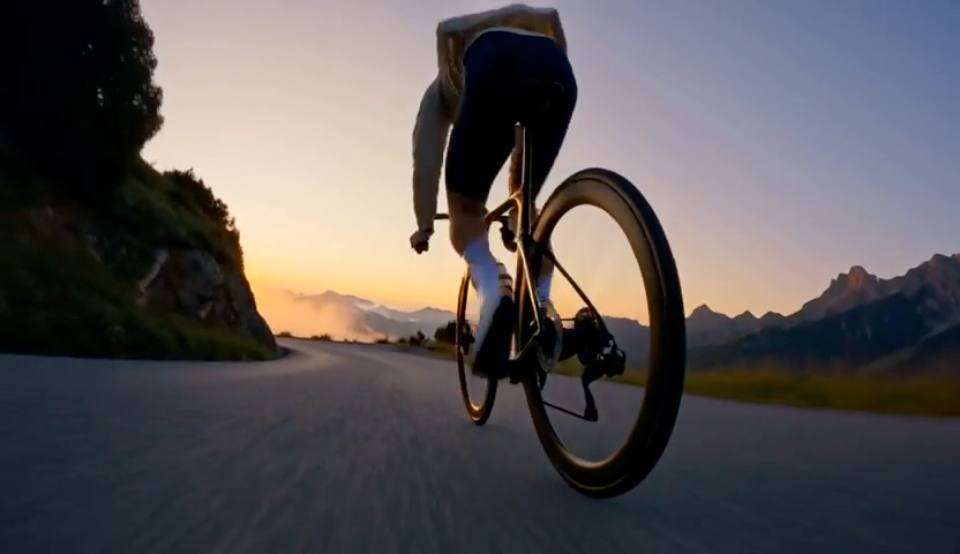
    A cyclist races down a narrow mountain road at sunrise. Low tracking camera beside the bicycle, jacket moving in the wind, wheels turning quickly and natural wind and road sounds.

    Try it
On Aragon

Why Create With MiniMax H3 on Aragon?

Use MiniMax H3 directly in Aragon to control the clip length, video shape, reference media and output size before generating your video.

  • Choose MiniMax H3 Directly

    Select MiniMax H3 from the AI Video model picker when your project needs stereo sound, detailed scene instructions and clips up to 15 seconds.

  • Choose a 5 to 15-Second Clip

    Set the video length from 5 to 15 seconds so the scene has enough time for the action, camera movement and sound described in your prompt.

  • Create in Six Video Formats

    Choose 21:9, 16:9, 4:3, 1:1, 3:4 or 9:16 to match cinematic video, social posts, square content and vertical clips.

  • Guide the Beginning and Ending

    Upload start and end frames when you need more control over the opening and closing view of an image-to-video scene.

  • Choose Your Output Size

    Aragon offers 480p and 768p generation along with enhanced 2K and 4K output, giving you several choices for drafts and finished clips.

How it works

How to Use MiniMax H3 on Aragon

Open AI Video, choose MiniMax H3 and describe the scene you want to create.

  1. 1

    Open AI Video

    Sign in to Aragon and open AI Video from your dashboard.

  2. 2

    Choose MiniMax H3

    Select MiniMax H3 from the video model picker and choose your video settings.

  3. 3

    Describe Your Scene and Generate

    Write your prompt, add supported reference media when needed and generate your MiniMax H3 video.

Prompting

MiniMax H3 Prompting Guide

A strong MiniMax H3 prompt tells the model what is happening, how the camera moves, what the scene looks like and what sounds belong in the video.

Example prompt
“A cyclist races down a narrow mountain road at sunrise. Low tracking camera beside the bicycle, jacket moving in the wind, wheels turning quickly and natural wind and road sounds.”
  1. Start With the Main Subject and Action

    Name the person, product or object first, then explain the main action clearly. A direct opening helps MiniMax H3 understand what should receive the most attention in the clip.

  2. Describe the Camera Movement

    Add directions such as a slow push forward, tracking shot, overhead view or camera orbit when the camera needs to move in a specific way.

  3. Add the Setting and Light

    Describe the location, time of day and lighting so MiniMax H3 can build the visual mood around the main action.

  4. Describe Voices and Scene Sounds

    Write spoken lines in quotation marks and name important sounds such as rain, traffic, footsteps or machinery. This gives the stereo audio a clear role inside the scene.

  5. Give Reference Media a Clear Job

    Explain what each reference controls, such as the character, product, movement or audio style. Clear reference instructions help MiniMax H3 follow the important details throughout the clip.

Use cases

What Can You Make With MiniMax H3?

On Aragon, MiniMax H3 works well for video projects that need controlled movement, clear scene direction and sound generated with the picture.

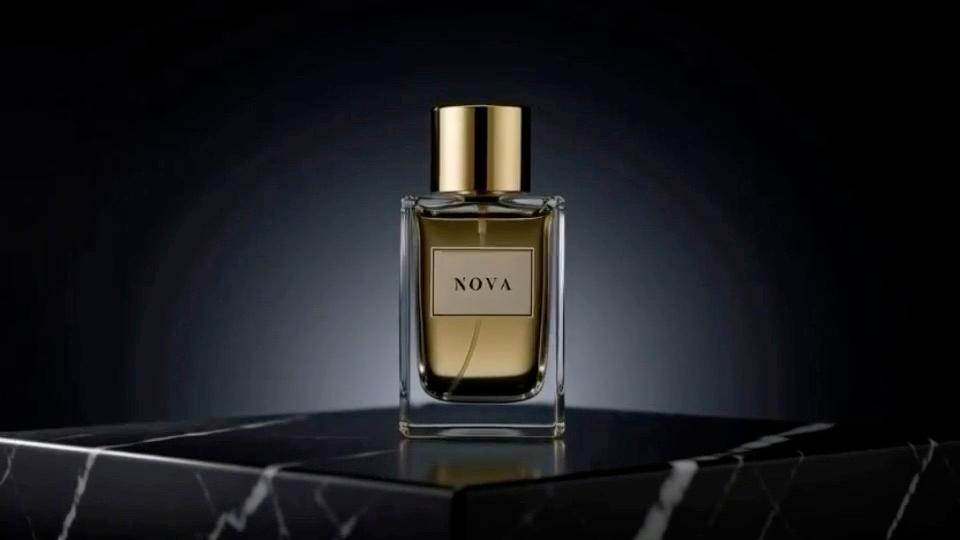
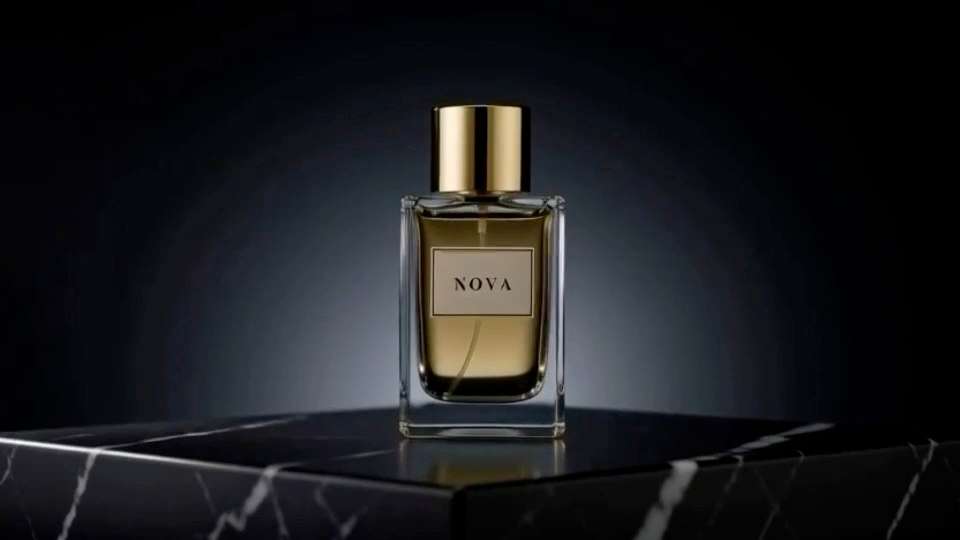
  • Perfume bottle on a dark marble plinth as a spotlight sweeps across it

    Product Reveals

    Use an image or product reference to create a short reveal with controlled camera movement, lighting and sound. You can also start from a still image with image to video.

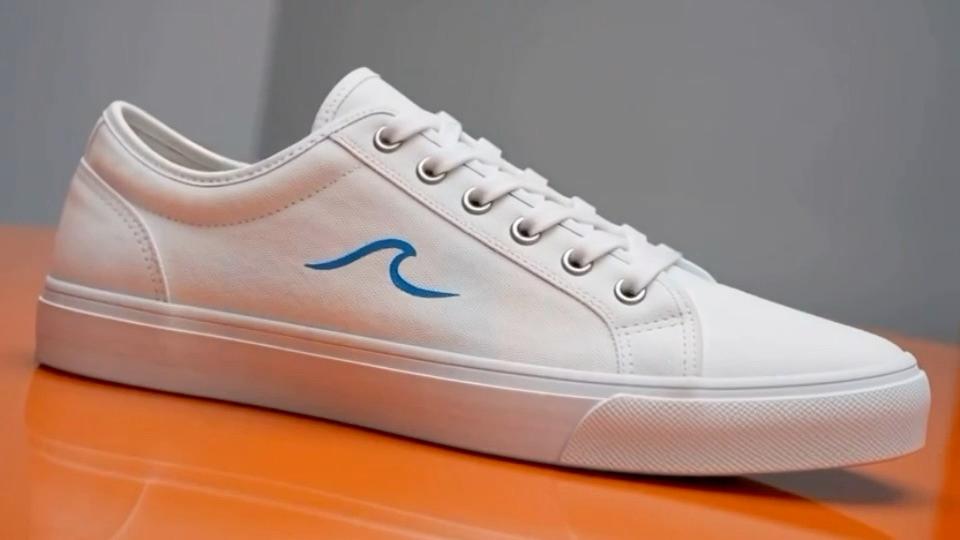
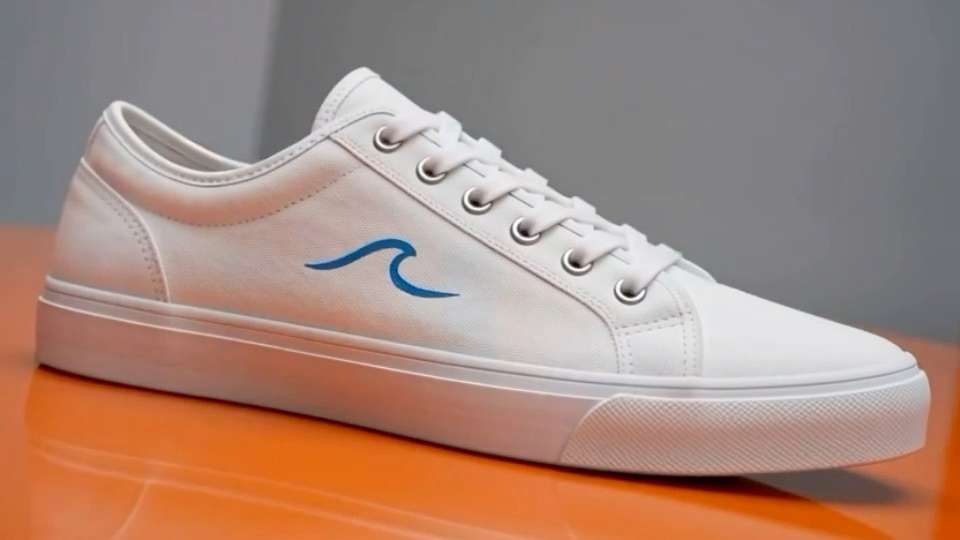
  • White sneaker landing on an orange studio floor beside the headline STRIDE. NEW SEASON.

    Brand Promos

    Create short branded scenes for launches, campaigns and social ads with logos, product details and sound built into the video. Aragon's promo video maker can support the wider campaign.

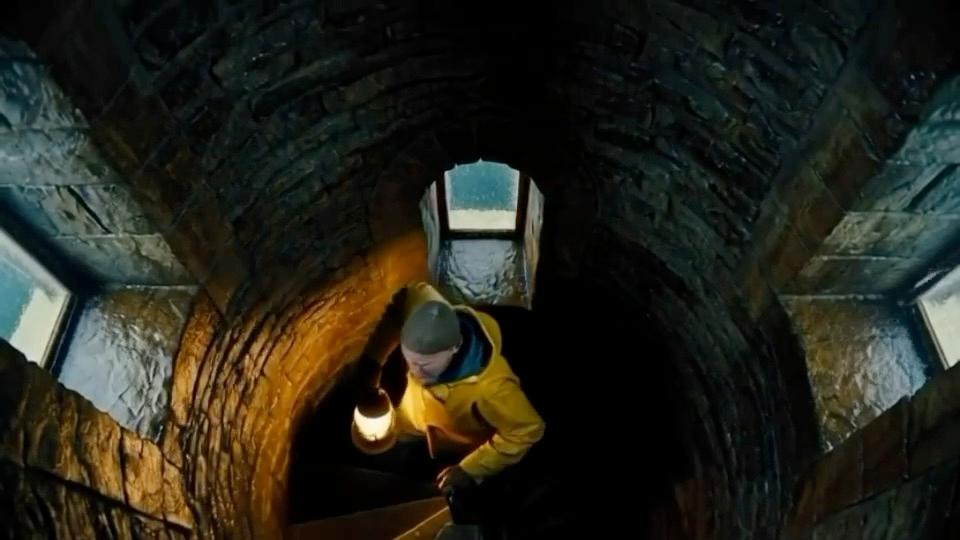
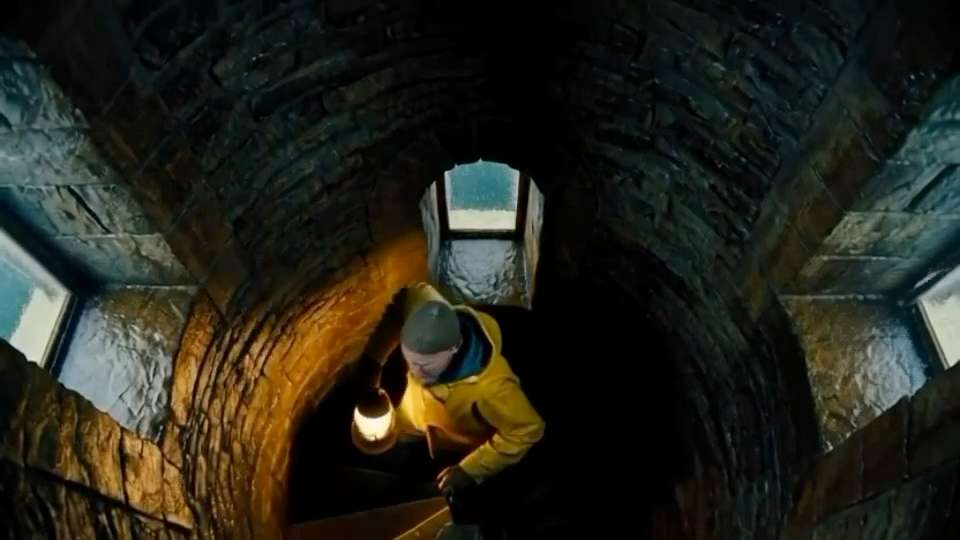
  • Lighthouse keeper climbing a spiral staircase with a lantern during a storm

    Cinematic Scenes

    Describe a complete shot from text, including the subject, camera, movement and sound. Use text to video when your scene starts from a written idea.

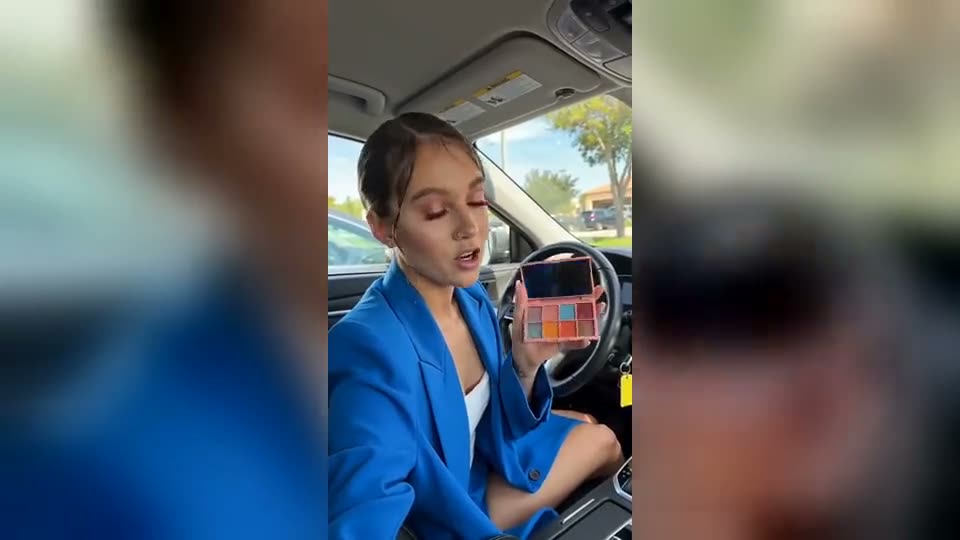
  • Woman showing an eyeshadow palette from the driver seat of a car

    Social Videos

    Create square, vertical or wide clips for social campaigns, short ads and content posts without changing the original video shape after generation.

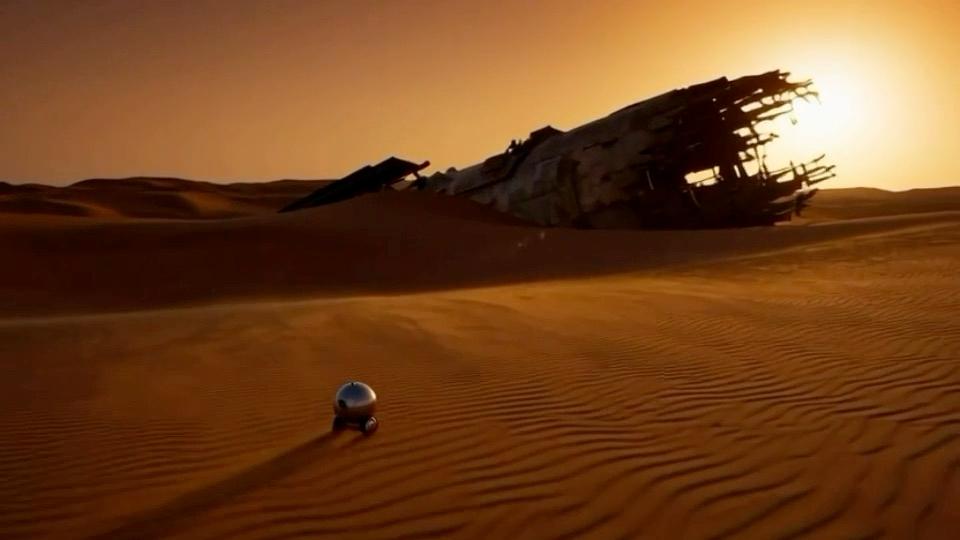
  • Small robot rolling across a red desert toward a crashed spaceship

    Storyboards and Concept Clips

    Turn a scene idea or reference frame into a moving concept that helps show camera direction, character movement and visual style before a larger production.

    After choosing the final clip, use the video upscaler when you need a larger video for the final project.

Prompt library

Try These MiniMax H3 Prompts

Copy a MiniMax H3 prompt and change the subject, setting, camera or sound for your project.

  • Product Advertisement

    Prompt

    A dark green fragrance bottle stands on polished stone beside moving water. Slow camera orbit around the bottle, bright side light across the glass, small water drops and soft flowing water sounds.

    Try it

    Works well for product advertising, launch videos and short brand campaigns.

  • Character Scene

    Prompt

    A man in a dark jacket waits alone at a bus stop during heavy rain at night. Slow camera push toward his face as headlights pass behind him. He looks down the road and says, "It's getting late." Add rain, passing cars and distant city sounds.

    Try it

    Works well for cinematic character scenes with dialogue and environmental sound.

  • Vertical Food Video

    Prompt

    Vertical close-up of hot noodles being lifted from a bowl with chopsticks. Steam rises through warm restaurant light, slow camera movement, small drops of broth falling back into the bowl and quiet restaurant sounds.

    Try it

    Works well for food advertising, social posts and vertical campaign creative.

Compare

MiniMax H3 vs Seedance 2.5

MiniMax H3 and Seedance 2.5 both generate video with sound, but each model fits a different type of project.

MiniMax H3Seedance 2.5
Best forClips up to 15 seconds with stereo sound and frame controlLonger single-take clips and reference-heavy video
MakerMiniMaxByteDance Seed
Clip length5 to 15 secondsUp to 30 seconds
Native audioStereo sound
Resolution on Aragon480p and 768p, with enhanced 2K and 4KUp to 1080p
Video formatsSix supported aspect ratiosSix supported aspect ratios
Image input
Best fitDetailed prompts, start and end frames and reference-guided videoLonger scenes, flexible references and extended action
Added to AragonAugust 31, 2026August 11, 2026
Choosing a model

Which Video Model Should I Pick?

Choose the video model that best matches the scene, clip length and type of creative control your project needs.

  • Pick MiniMax H3

    Choose MiniMax H3 for clips up to 15 seconds with stereo sound, detailed prompts, start and end frames and reference-guided video.

  • Pick Seedance 2.5

    Choose Seedance 2.5 for longer single-take videos, flexible references and clips up to 30 seconds.

  • Pick Veo 3.1

    Choose Veo 3.1 for short cinematic scenes with native dialogue and output up to 4K.

  • Pick Kling 3.0

    Choose Kling 3.0 for short cinematic clips with native audio and multi-shot storytelling.

Reviews

What our customers say

9.1K+total reviews on

Create With MiniMax H3

Describe your scene, add reference media when needed and create a video up to 15 seconds with stereo sound using MiniMax H3 on Aragon.

9.1K+total reviews on

MiniMax H3 FAQs

Customer satisfaction is our number one priority. Our live agents are available 7am - 11pm (PT), 5 days Sunday through Thursday.

MiniMax H3 is MiniMax's multimodal AI video model for generating video from text, images and reference media. It creates clips up to 15 seconds with native stereo sound and supports video resolution up to 2K at the model level.

Open AI Video on Aragon, choose MiniMax H3 from the model picker and write a description of your scene. Add supported reference media when needed, choose the video settings and generate the clip.

MiniMax H3 supports clips from 5 to 15 seconds on Aragon. Choose the duration that gives your scene enough time for the action, camera movement and sound.

Yes. MiniMax H3 generates native stereo sound together with the video, including voices, action sounds and background audio described in the prompt.

Yes. MiniMax released the H3 model weights on August 3, 2026. The open-weight release allows developers and researchers to work with the model outside hosted platforms.

MiniMax H3 is available on Pro plans and above. See the pricing page for current plans.

Usage rights depend on your plan and the specific content generated. See Aragon's Terms and Conditions for full details.

Your uploads stay private during processing. For full details, see Aragon's Privacy Policy.

Related Models

The Leading AI Headshot Generator for Professionals

Trustpilot

Trusted by professionals and teams

Earn 30% for every referral

Join our affiliate program for free!

SOC 2 Type II compliant

Copyright © 2026 Aragon AI, Inc. All rights reserved.

Terms of Use & Privacy Policy