01
Native Dialogue and Sound
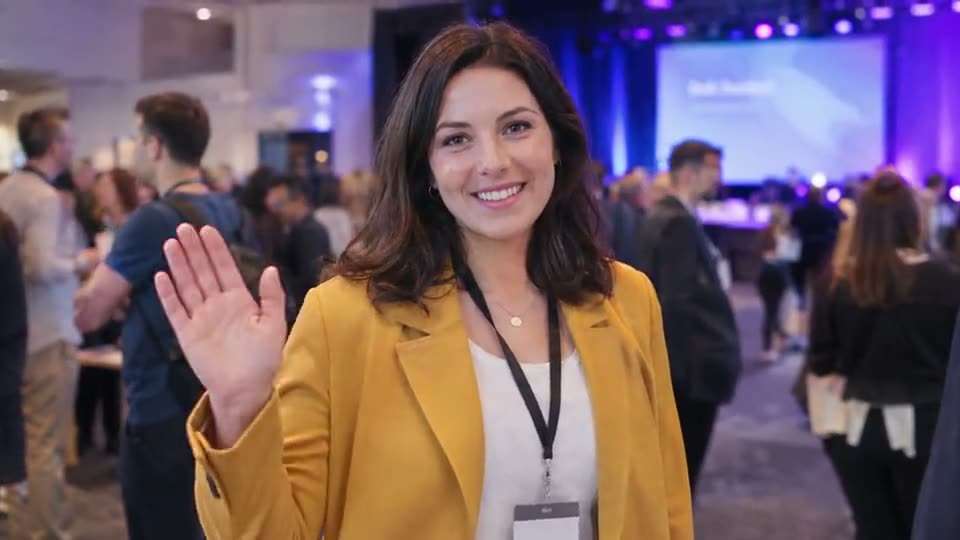
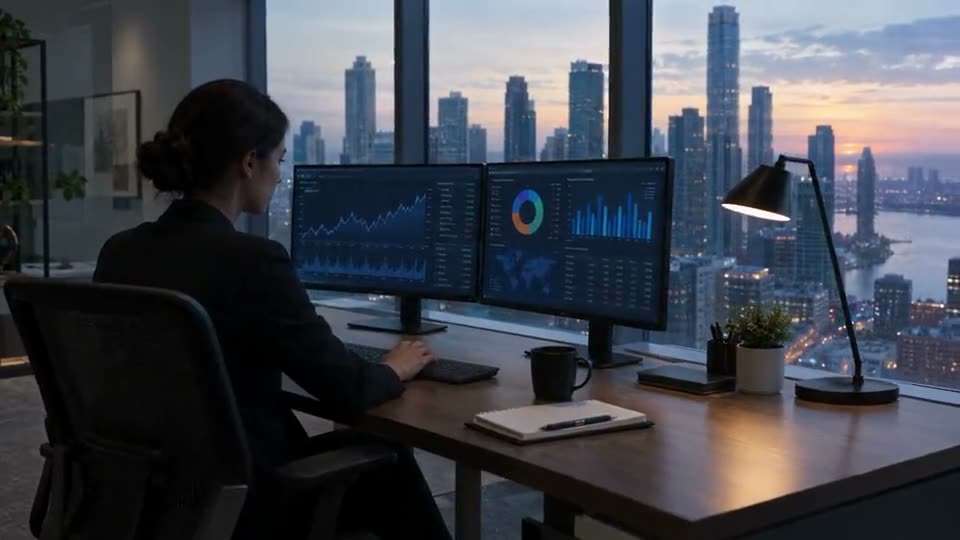
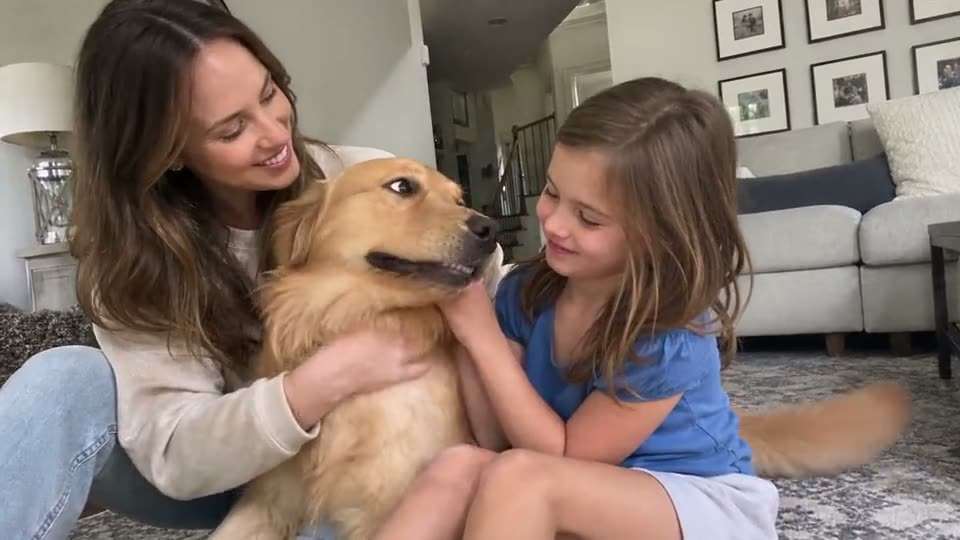
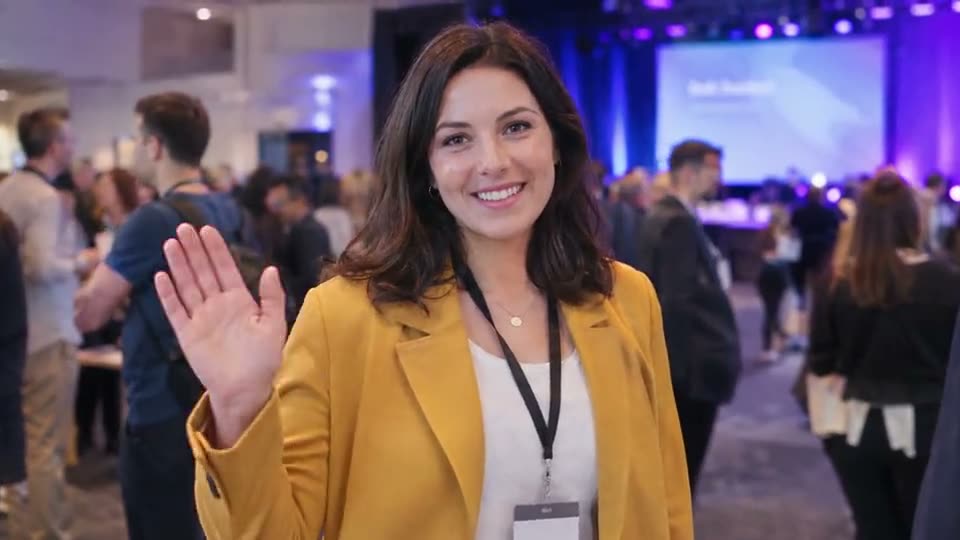
Veo 3.1 creates sound with the video, including spoken dialogue, action sounds and natural background audio. Describe the sounds in your prompt so the voices and scene audio match the action on screen.
Google Veo 3.1 creates short cinematic videos with native dialogue, sound effects and background sound generated with the picture. On Aragon, use Veo 3.1 to create 4, 6 or 8-second clips in 720p, 1080p or 4K from text or images.
Google Veo 3.1 is Google DeepMind's AI video model for generating cinematic clips from text and images. It creates the video and native audio together, including spoken dialogue, sound effects and natural background sound.
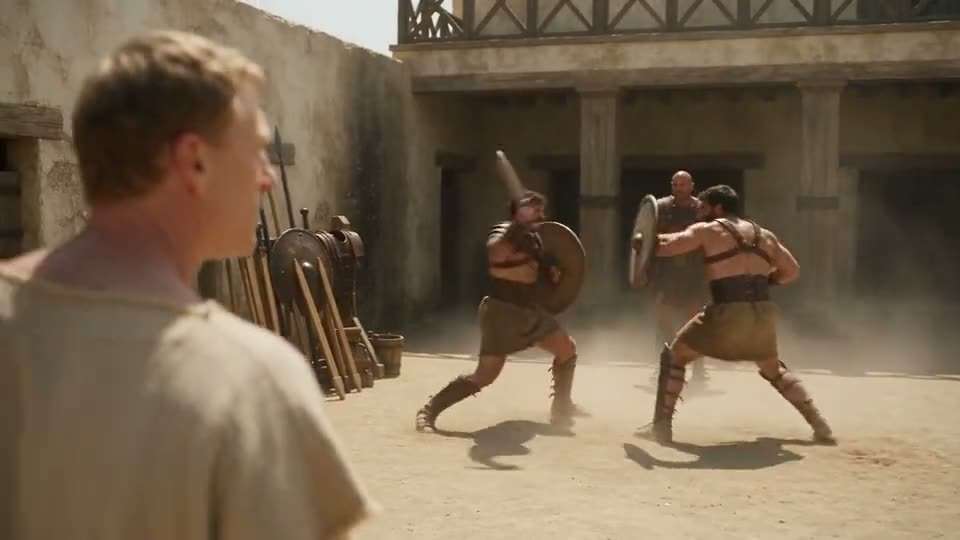
Veo 3.1 can generate 4, 6 or 8-second clips and supports 720p, 1080p and 4K output. Google also added stronger control through reference images, first-and-last-frame generation and prompts that describe camera movement, action and sound.
The model works in wide 16:9 and vertical 9:16 formats, making it useful for cinematic scenes, product videos, ads, social clips and other short-form video projects.
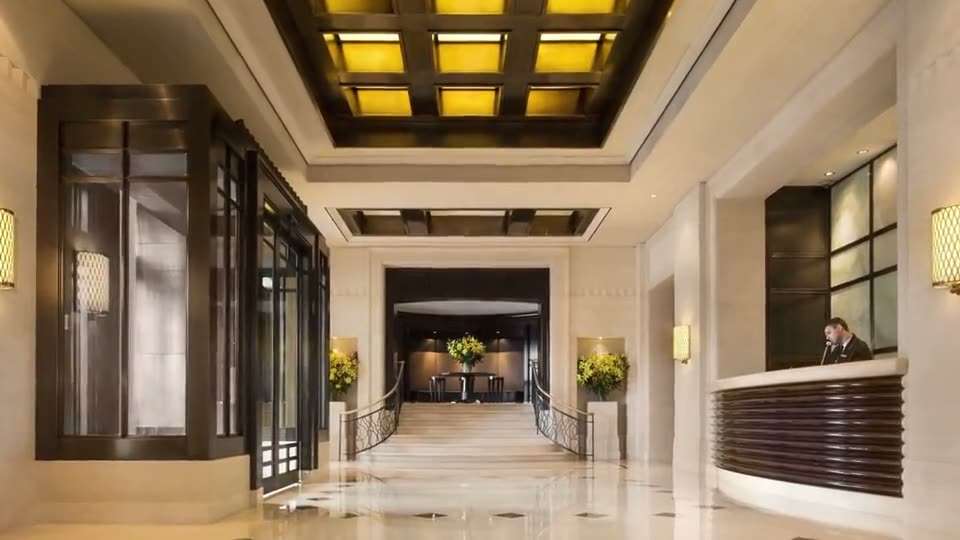
Google Veo 3.1 combines native sound, cinematic prompt control, reference images, frame control and video output up to 4K.
Veo 3.1 creates sound with the video, including spoken dialogue, action sounds and natural background audio. Describe the sounds in your prompt so the voices and scene audio match the action on screen.
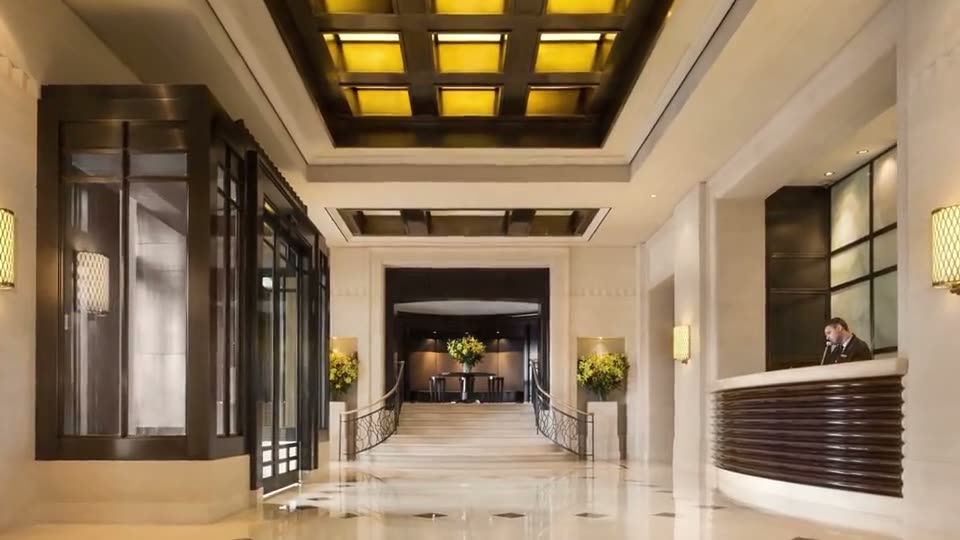
Veo 3.1 supports 720p, 1080p and 4K video. Use higher resolution when your shot needs more visible detail for campaign videos, product scenes or larger displays.
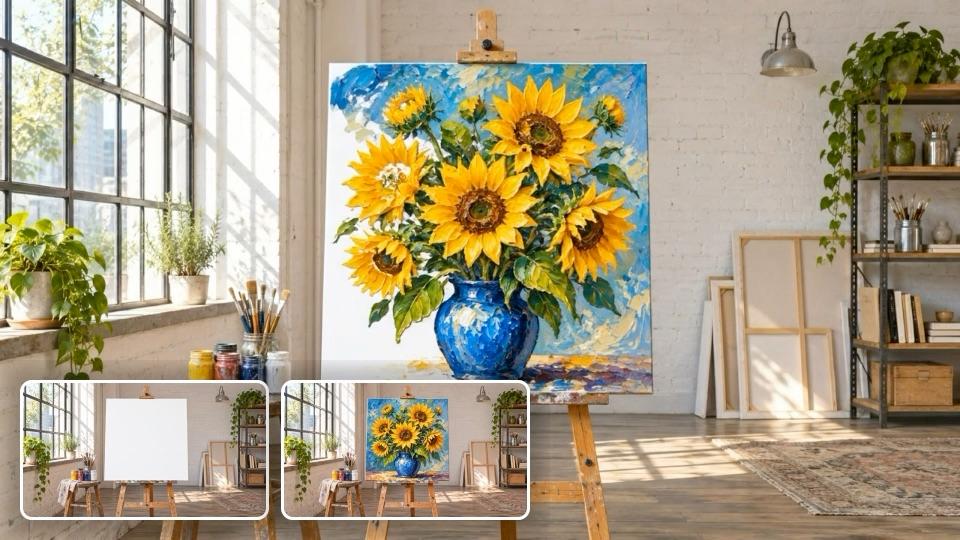
Set how a shot begins and how it finishes by giving Veo 3.1 a starting frame and an ending frame. The model creates the movement between those two visual points.
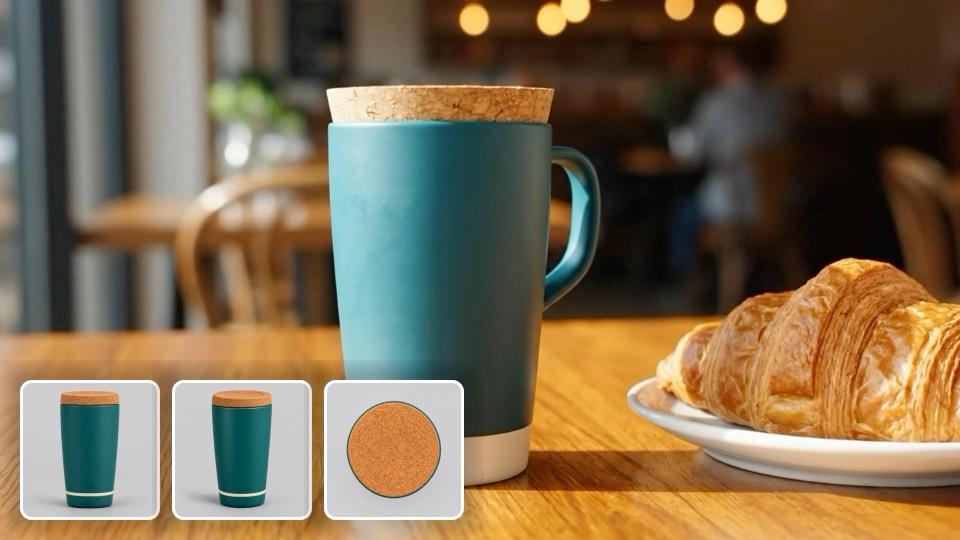
Veo 3.1 can use up to three reference images to guide the appearance of a person, character or product. This helps keep important visual details recognizable inside the generated clip.
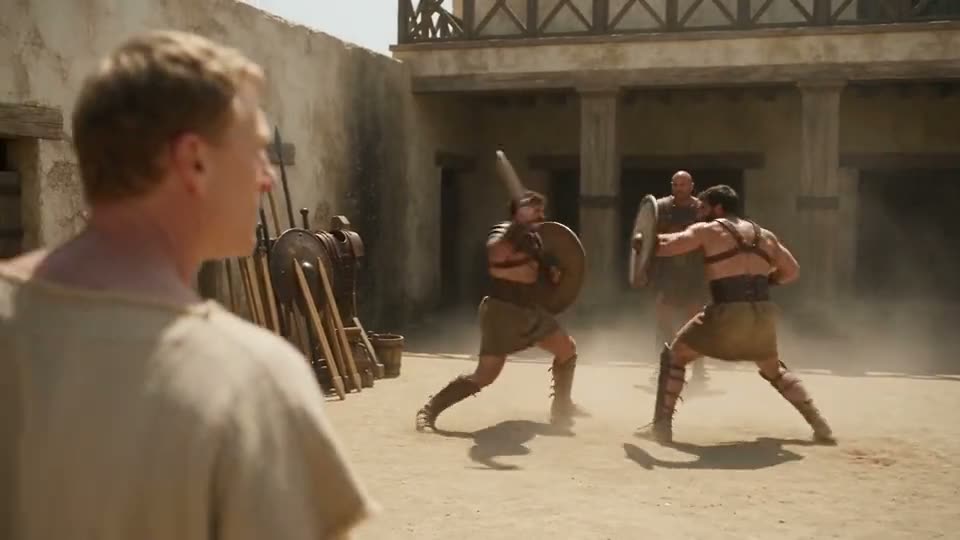
Describe camera movement, shot type, lighting, action and sound in normal language. Veo 3.1 understands directions such as tracking shots, close-ups and slow camera movement when they are clearly written in the prompt.
See videos created with Veo 3.1 on Aragon, with the exact prompt used for each example. Copy a prompt and change the subject, action or camera direction for your next clip.
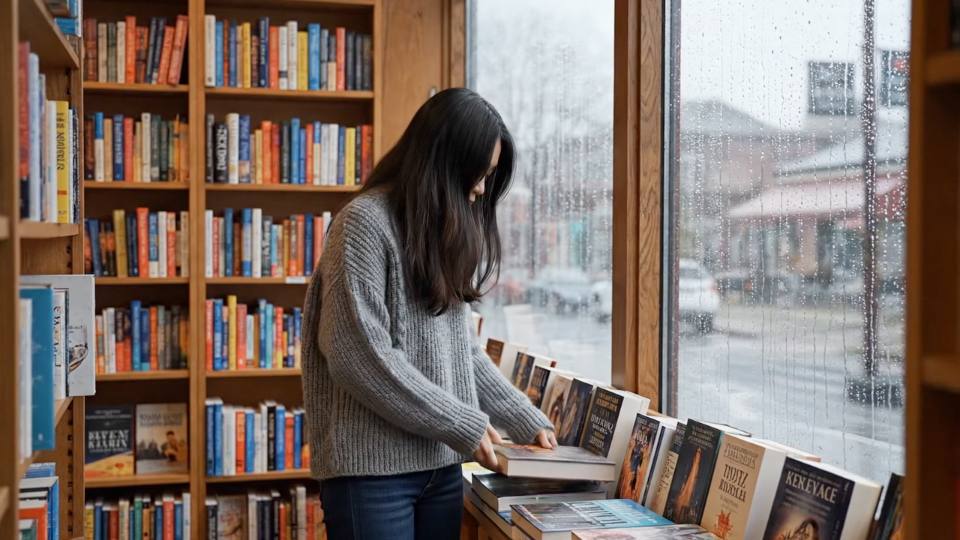
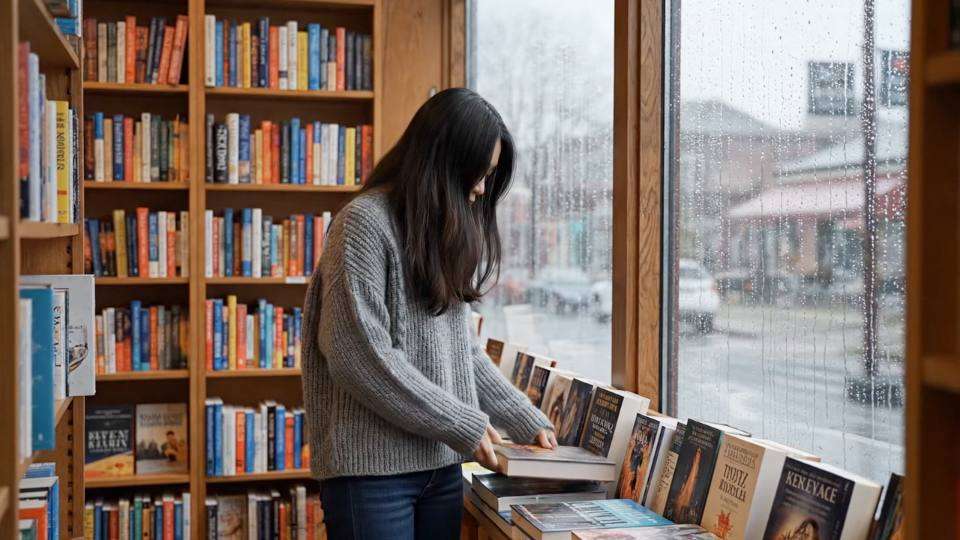
Prompt
A woman stands inside a quiet bookstore during a rainstorm. Medium shot, slow camera push forward. She looks toward the window and says, "I think the rain is getting stronger." Soft rain hits the glass and distant thunder can be heard outside.
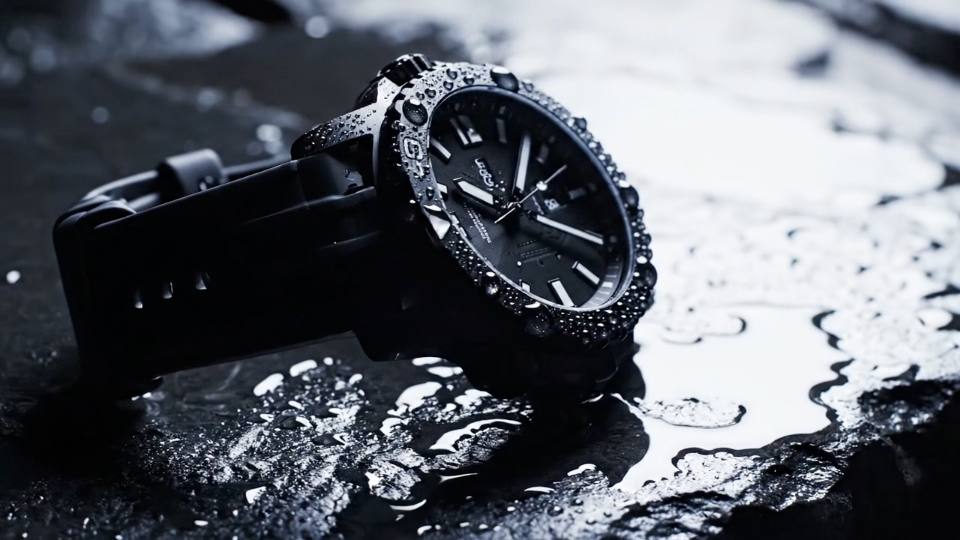
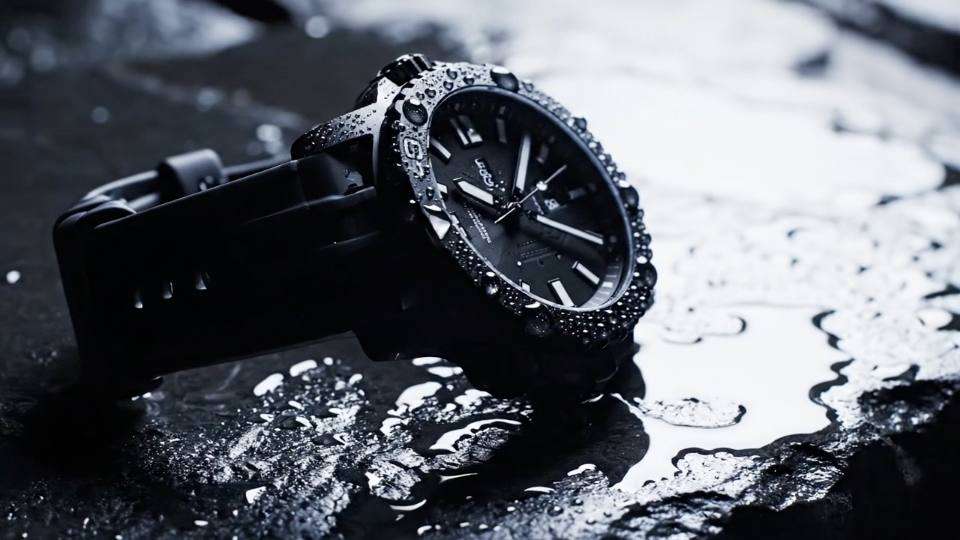
Prompt
A black sports watch rests on wet dark stone. The camera slowly circles the watch while water drops move across the surface. Strong side lighting reveals the metal texture. Add soft water sounds in the background.
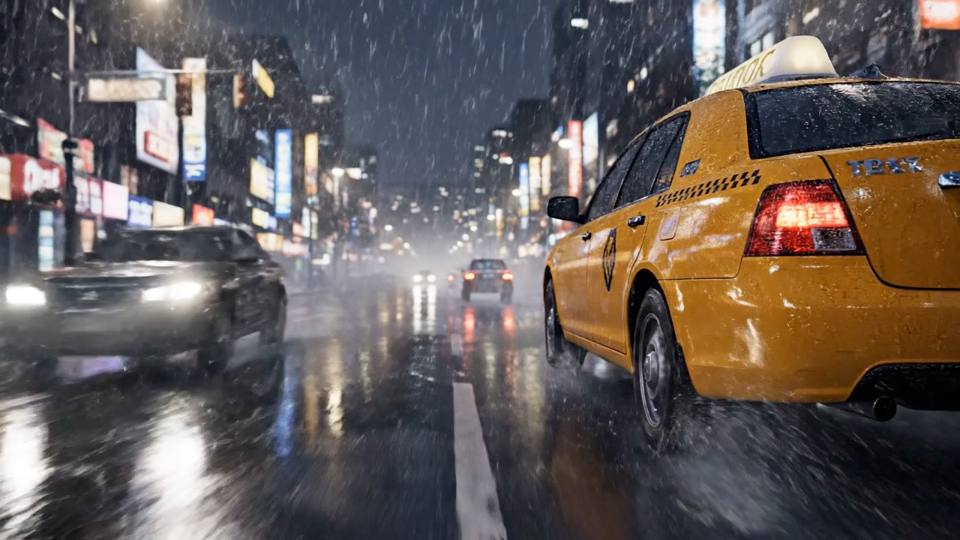
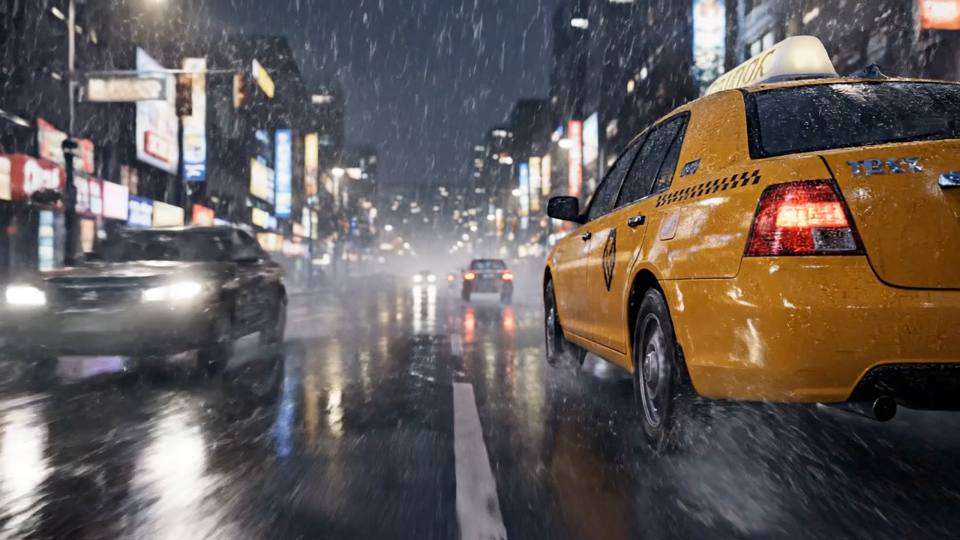
Prompt
A yellow taxi drives through a rainy city street at night. Low tracking camera beside the car, reflections moving across the road, headlights passing through light fog, natural traffic sounds and steady rain.
Use Google Veo 3.1 directly inside Aragon to create video from text or images with native audio, flexible video sizes and output up to 4K.
Select Veo 3.1 inside Aragon's AI Video model picker when your project needs short cinematic video with native sound and detailed visual control.
Start with a written scene or upload an image you want Veo 3.1 to animate. Both options let you guide movement, camera direction and sound from the same video workspace.
Generate Veo 3.1 clips in 720p, 1080p or 4K on Aragon and choose the resolution that matches your final video project.
Choose 16:9 for wide video or 9:16 for vertical content. Veo 3.1 generates the shot for the selected format instead of relying on a later crop.
Your uploaded media stays private during processing, with Aragon security controls protecting your videos and account data.
Open AI Video, choose Veo 3.1 and describe the short scene you want to generate.
Sign in to Aragon and open AI Video from your dashboard.
Select Google Veo 3.1 from the video model picker.
Write your scene or upload an image, then choose the duration, resolution and video format before generating your Veo 3.1 clip.
Use Veo 3.1 for short videos where movement, camera direction and native sound need to work together inside one scene.
Write the spoken line inside your prompt and describe the setting, camera and surrounding sounds. Veo 3.1 generates the character dialogue together with the scene and matching background audio.

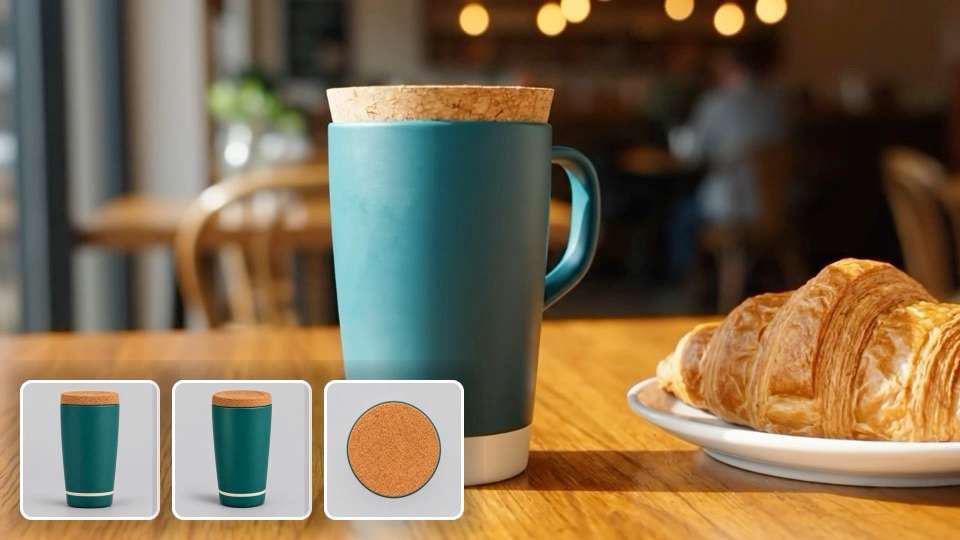
Turn a product idea or reference image into a short commercial scene with controlled camera movement, lighting and product-focused sound.
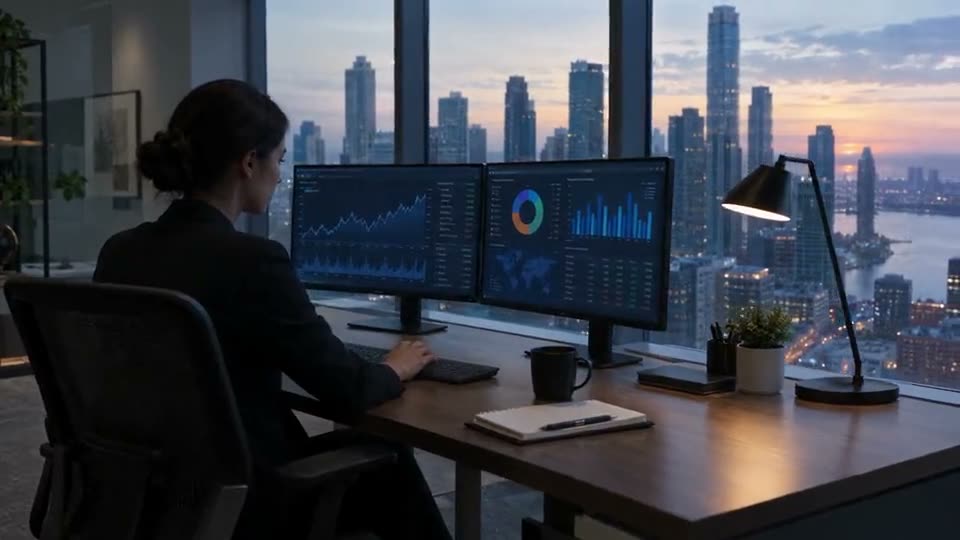
Create short supporting shots for ads, explainers and branded videos with Aragon's B-roll generator and Veo 3.1.
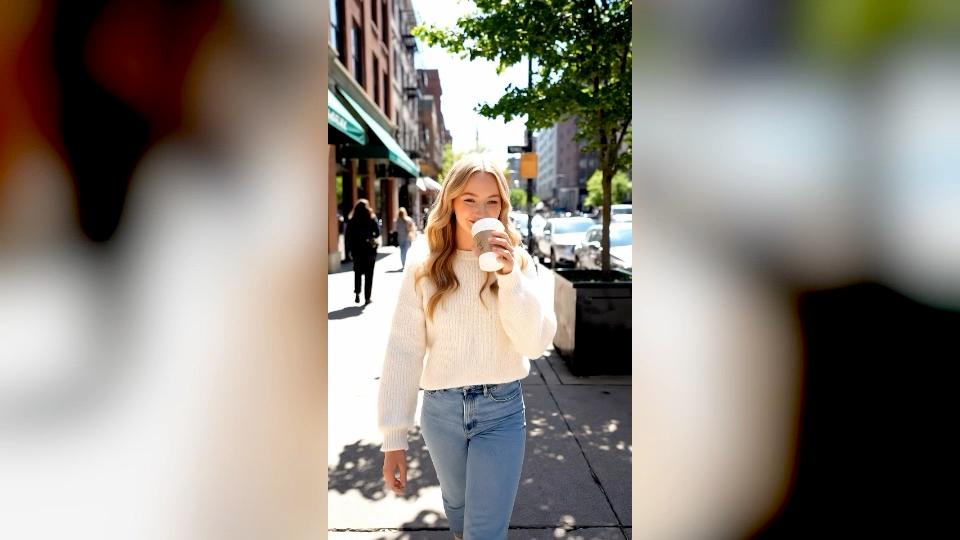
Create 9:16 clips for Reels, Shorts and other vertical feeds without turning a wide shot into a later crop.
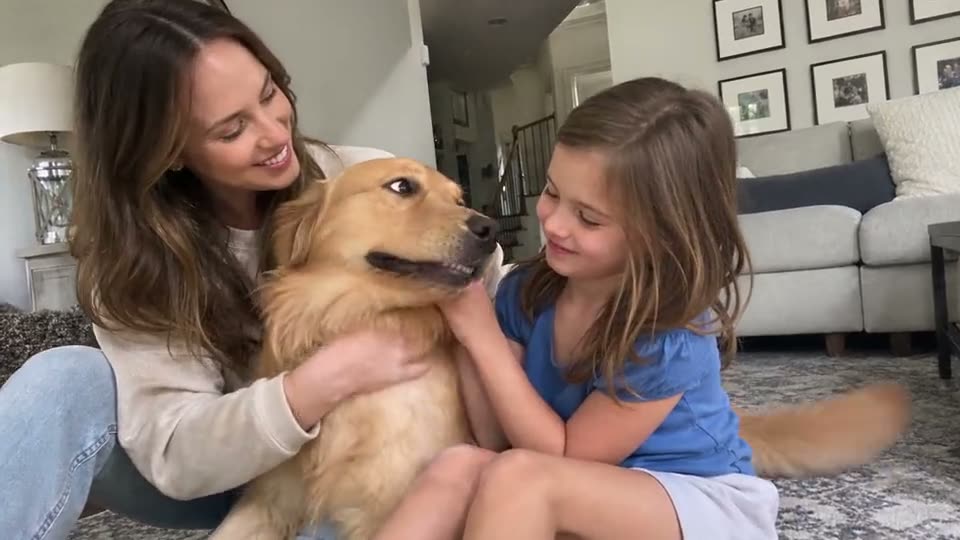
Upload a still image and use image to video to add movement, camera action and native sound while keeping the original image as the visual starting point.
Veo 3.1 works best when your prompt clearly describes the scene, movement, camera direction and sound you expect in the finished clip.
“A yellow taxi drives through a rainy city street at night. Low tracking camera beside the car, reflections moving across the road, headlights passing through light fog, natural traffic sounds and steady rain.”Write the exact spoken line inside quotation marks and identify the person speaking so Veo 3.1 can connect the dialogue with the correct character.
Add sounds such as rain, footsteps, traffic, machinery or voices when they matter to the scene. Clear sound directions help Veo 3.1 match the audio to the action on screen.
Describe a slow push, tracking shot, overhead view or another clear camera move when camera movement is important to the scene.
Focus the short clip around one main action or moment so the subject, camera and sound can all support the same scene.
Add reference images when a specific person, character or product needs to remain recognizable inside the generated video.
Copy a prompt and change the subject, dialogue, sound or camera direction for your project.
Prompt
A premium perfume bottle stands on black stone beside moving water. Slow camera orbit around the bottle, cool side lighting and small reflections across the glass. Water flows softly in the background with subtle room sound.
Works well for short product commercials and premium brand visuals.
Prompt
Medium close-up of a chef standing inside a quiet restaurant kitchen after closing. The chef looks toward the dining room and says, "Tomorrow, we start again." Slow camera push forward, quiet kitchen sounds and distant rain outside.
Works well for character scenes where dialogue, expression and surrounding sound matter together.
Prompt
Vertical close-up of fresh strawberries falling into sparkling water inside a clear glass. Bright daylight, slow camera movement, bubbles rising through the glass and crisp splashing sounds.
Works well for vertical product shots, food videos and short social creative.
Veo 3.1 and Seedance 2.5 both create video with native sound, but each model fits a different type of video project.
| Veo 3.1 | Seedance 2.5 | |
|---|---|---|
| Best for | Short cinematic scenes with dialogue and native sound | Longer single-take clips and reference-heavy video |
| Maker | Google DeepMind | ByteDance Seed |
| Clip length | 4, 6 or 8 seconds | Up to 30 seconds |
| Native audio | ||
| Resolution on Aragon | 720p, 1080p and 4K | Up to 1080p |
| Video formats | 16:9 and 9:16 | Six supported aspect ratios |
| Image input | ||
| Best fit | Dialogue, cinematic shots and detailed short scenes | Longer scenes, flexible references and extended action |
| Added to Aragon | July 1, 2026 | August 11, 2026 |
Choose the model that matches the type of video you need to create.
Choose Veo 3.1 for short cinematic scenes with native dialogue, detailed sound and video output up to 4K.
Choose Seedance 2.5 when your project needs a longer single-take clip, flexible references or video generation up to 30 seconds.
Choose Kling 3.0 for short cinematic clips with native audio, multi-shot storytelling and consistent characters.
Choose Gemini Omni Flash when your project focuses on changing or directing video through conversational instructions.
Describe a cinematic scene or upload an image, then create a short video with native sound using Google Veo 3.1 on Aragon.
Customer satisfaction is our number one priority. Our live agents are available 7am - 11pm (PT), 5 days Sunday through Thursday.
The Leading AI Headshot Generator for Professionals
Trustpilot
Trusted by professionals and teams
Earn 30% for every referral
Join our affiliate program for free!
Copyright © 2026 Aragon AI, Inc. All rights reserved.